

How Fix with agent works
Many cards have Fix with agent. Clicking it sends the error, and the end of your app’s log when there is one, to the agent in that worktree’s chat, which opens next to the canvas. On most cards, the card then changes to Sent to your agent, with Open conversation, and View logs when there was output to send. Your agent looks for the cause in the worktree, fixes it, and tells you what it found, what it changed, and anything you still need to do. It doesn’t start your app itself. When it was fixing a failed start and its turn finishes, Wonder starts the Preview again once, unless you started or stopped it yourself in the meantime. Fix with agent appears on Previews started from a worktree or from your repository’s own folder, when your workspace has chat. Without it, a card offers Edit start command and Open worktree (or Open chat in your repository’s folder) instead.Couldn’t start your app
The start command stopped before your app was ready. The card says which step failed:- The start command exited before the app was ready. Your app crashed while starting. Click View logs to see why.
- The setup command failed before the app could start. Installing dependencies or another setup step failed.
- A dependency is missing, so the app couldn’t start. A package isn’t installed in this worktree.
- The saved start command wasn’t found. The command doesn’t exist on this computer. Click Edit start command to check it.
- The command names a file that isn’t there, so the app couldn’t start. The start command points at a script or file the worktree doesn’t have. This one has no Fix with agent: click Edit start command to correct it.
This port is already in use
Another app is already using the port your app starts on, often a dev server you started yourself in a terminal or in another worktree.- Click Stop it and start preview. Wonder checks which program holds the port, stops it and starts your app. With several ports, the button is Stop them and start preview.
- If Wonder can’t stop it, for example because a container or another account owns it, the card says so. Click Fix with agent: your agent finds the program, stops it only if it’s a leftover of this project, and otherwise can move your app to another port.
Node.js isn’t installed
Your start command needs a tool this computer doesn’t have. The title names the tool, for example Node.js isn’t installed or pnpm isn’t set up. If Wonder can’t tell which tool, it says A tool your app needs isn’t installed. Click the button on the card, such as Download Node.js or Set up pnpm, install the tool, then click Try again. Or click Fix with agent to have your agent help you install or set it up.Docker isn’t running
Your app starts containers and Docker isn’t running. The card says Podman isn’t running when your app uses Podman. Start Docker Desktop, or your Podman machine, then click Try again. This card has no Fix with agent.Set up your start command
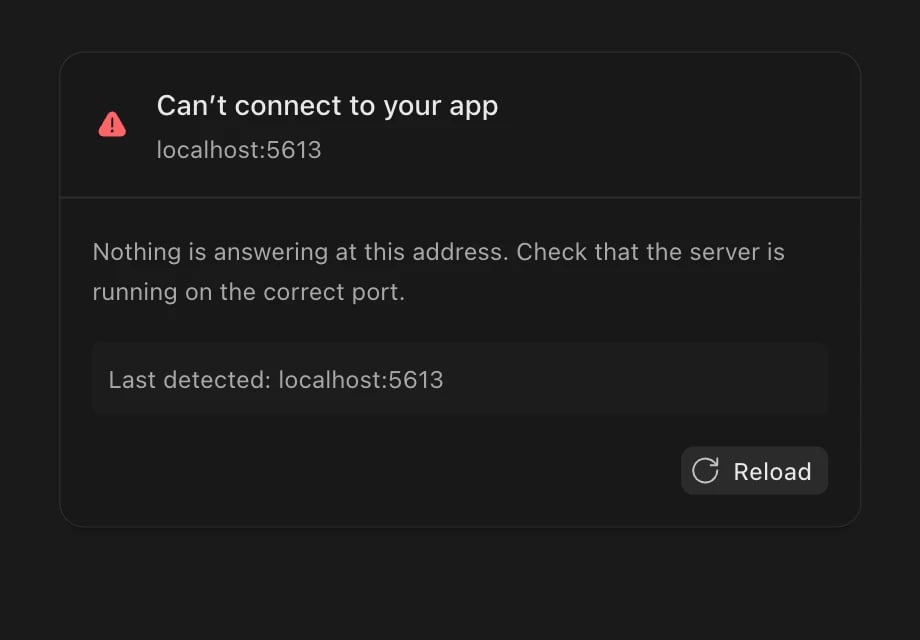
Wonder doesn’t know how to start your app yet. Click Set up with agent to let your agent find the command, or Edit start command to type it. See Set up the Preview.Can’t connect to your app
Your app’s server isn’t answering at the Preview’s address. It may have stopped, or it may be running on another port. Check that the server is running on the port the Preview opens, then click Reload. On a Preview started from a worktree, Fix with agent asks your agent to find out why nothing answers. If the card says Your app stopped responding, the server still answers but the page stopped drawing. Click Reload.Your app needs a secret file
A worktree is a fresh copy of your repository, so it doesn’t have the files Git ignores, such as.env. When your main checkout has them, the Preview offers to copy them:
- Before your app starts, This worktree is missing 1 secret file lists the files. Click Copy 1 file and start, or Choose other files… to pick them yourself. Wonder also copies them into new worktrees from then on; you can change this in Repository settings.
- If your app stopped because it looked for a file or variable, the card is titled Your app needs followed by the file, for example Your app needs .env.local. Click Copy and try again. If your main checkout doesn’t have it either, click Choose files… to pick it from anywhere on your computer.
Continue in your browser
The Preview only shows pages on your computer. This card appears when:- Your app tried to open another site. A link or redirect left
localhost, for example to a payment page or another domain. - The site won’t open inside another page. The page you opened refuses to be shown in a frame.
This app blocks being shown in a frame
Your app’s own code stops it from running inside another page. Click Fix with agent: your agent skips that check only in a development build running in Wonder, whereWONDER_PREVIEW is 1. Your live app doesn’t change. The card closes and the chat opens; reload the Preview when your agent is done. You can also click Open in browser.
This computer doesn’t trust the address
The card is titled This computer doesn’t trust followed by your app’s address. Your app runs behind a local HTTPS tool whose certificate this computer doesn’t trust yet. When Wonder recognizes the tool, the card shows the command to run once in a terminal, such asportless trust or caddy trust. Run it, then click Try again. This card has no Fix with agent.
A teammate can’t see my Preview
A Preview is local: it runs on your computer and only you can see it, in the desktop app. A teammate who opens the file doesn’t see your Preview at all, and there’s no card or Fix with agent for it. To show them your app, publish it, which gives a link anyone can open. Publishing needs a Pro plan.Your site wasn’t published
Your first publish didn’t go live, so there’s no link yet. The card shows the error, and View logs shows the build output.- Click Try again to publish again.
- Click Fix with agent to send the error and the end of the build output to your agent. It finds the cause, fixes it and runs the production build to check that it passes, but doesn’t publish. Click Try again when it’s done. Only the person who published the Preview sees this button.
If something goes wrong
- Click View logs on the card, when it has it, to see your app’s own output. Most problems show up there first.
- If the same card comes back after Fix with agent, read your agent’s reply in the chat: it says what it couldn’t do and what you need to do.
- Check your commands in Repository settings > Preview.