

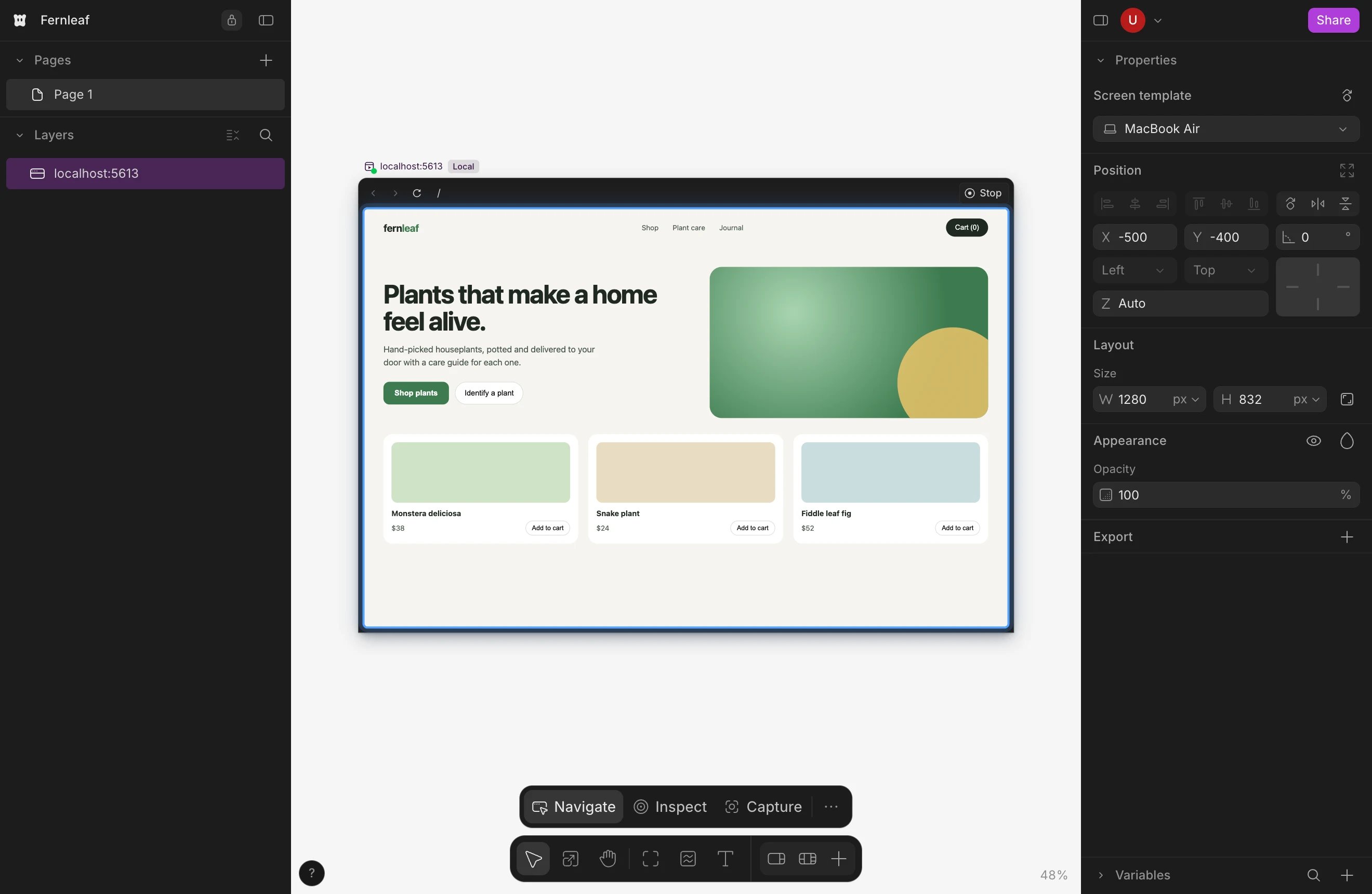
Start and stop the Preview
- Open a chat in a worktree of your repository.
- Click Start preview in the chat header, or press ⌘ ⇧ P.
Click through your app
Clicking a Preview selects it, like any other layer. To use the app inside it:- Double-click inside the Preview, or select it and click Navigate in the bar at the bottom of the canvas. The Preview gets a blue outline.
- Click, scroll, type and open pages as you would in a browser.
- Press Esc, or click the canvas outside the Preview, to go back to selecting.
/, to type another page of your app.
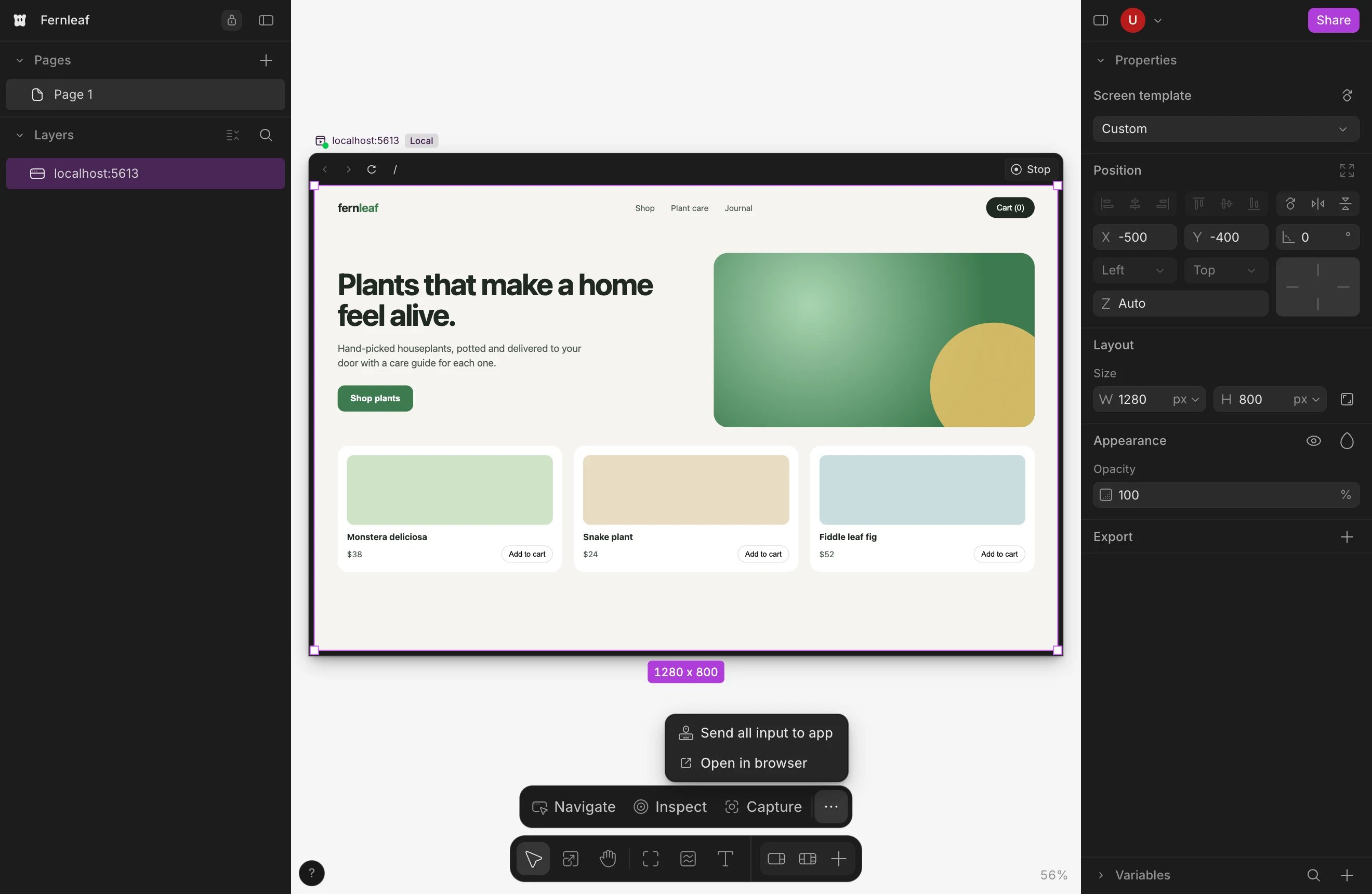
Space, zoom shortcuts and pinch still move the canvas while you use the app. To send them to your app instead, select the Preview, open More actions (⋯) in the bar at the bottom of the canvas and choose Send all input to app.
Change the screen size
Select the Preview, then pick a device under Screen template in the properties panel. Each one shows its width and height, from iPhone 17 (402 × 874) to TV (3840 × 2160). Click the rotate button next to it to switch between portrait and landscape.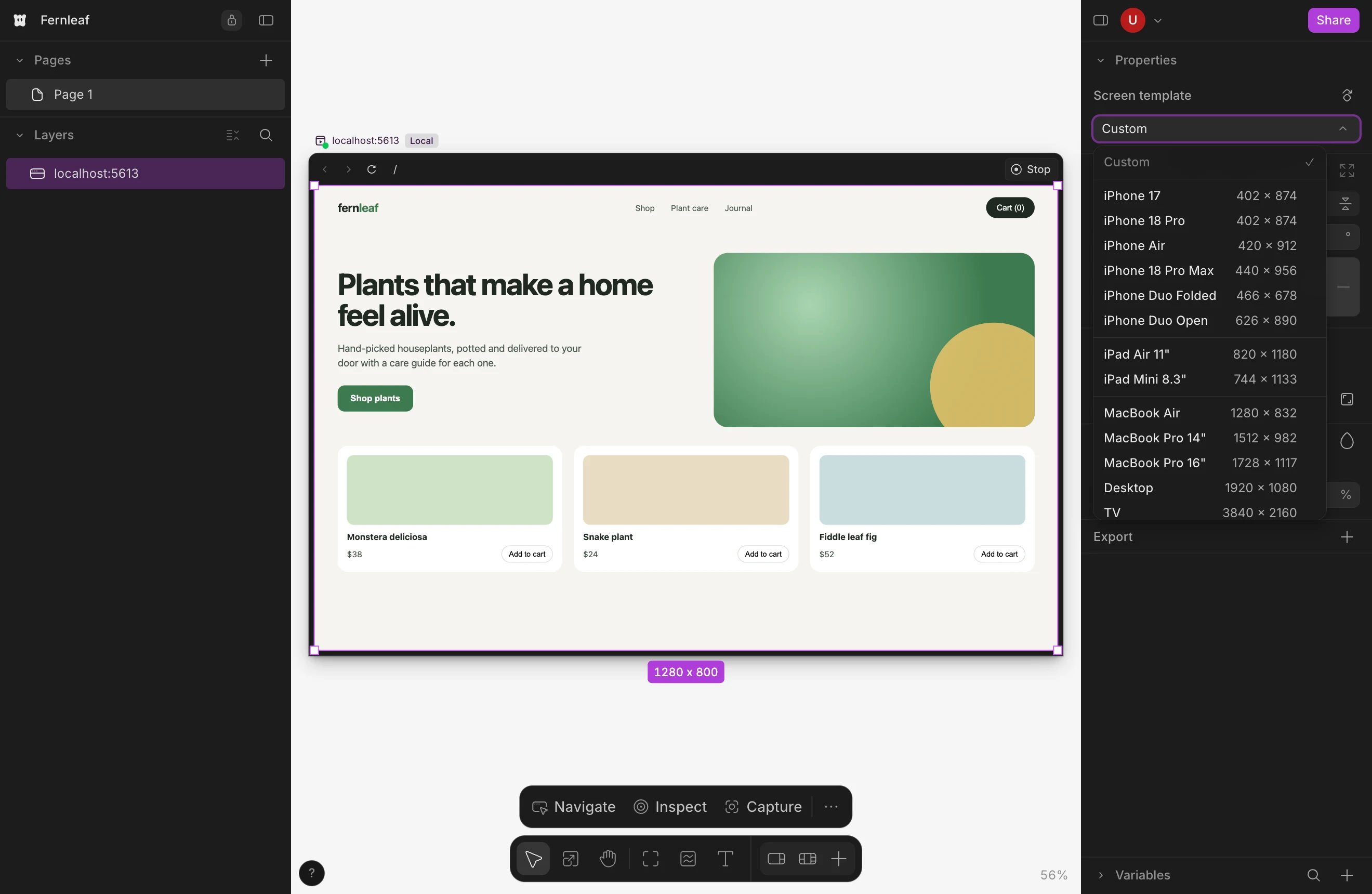
Open it in a tab or your browser
- Open in a tab: press ⌘ ⌥ P, or click the tab button in the Preview’s title bar. The app fills a Wonder tab, ready to use. Click Show on canvas to go back.
- Open in browser: select the running Preview, open More actions (⋯) in the bar at the bottom of the canvas and choose Open in browser. You’ll also find it in the menu next to Start preview in the chat header, and in the worktree’s menu in the sidebar.
Let your agent use the Preview
A chat in a worktree can use that worktree’s Preview without any setup. If the chat has worked in a fork, start the Preview yourself first, since starting it runs the fork’s own scripts. Ask in plain words, for example “start the Preview and check the sign-up form”. Your agent can:- start the Preview and read the page it shows, including its console;
- click, type and scroll in the app to test a flow;
- capture the page onto the canvas as an editable design.
Allow the camera, microphone and other permissions
When your app asks for the camera, microphone, location, your screen, or to read what you’ve copied, a card appears over the Preview naming the app and what it wants. Click Allow or Don’t allow.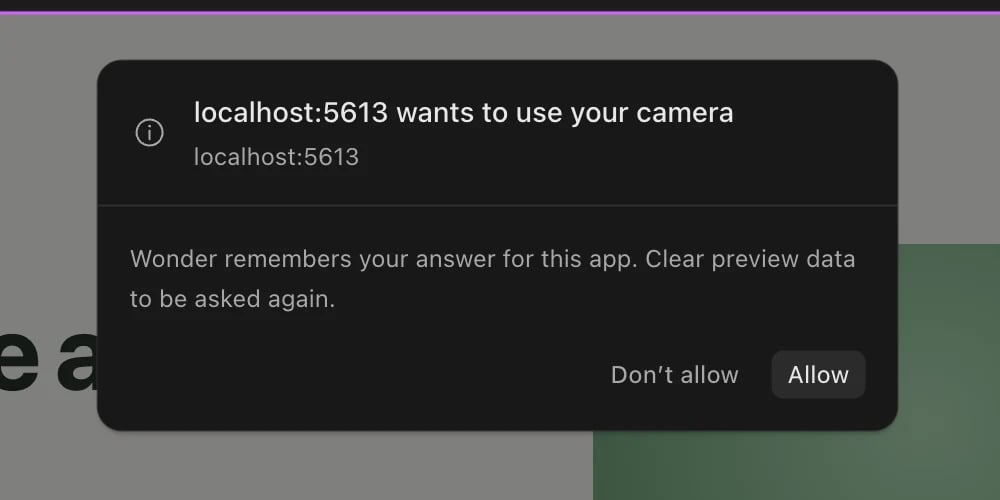
Clear preview data
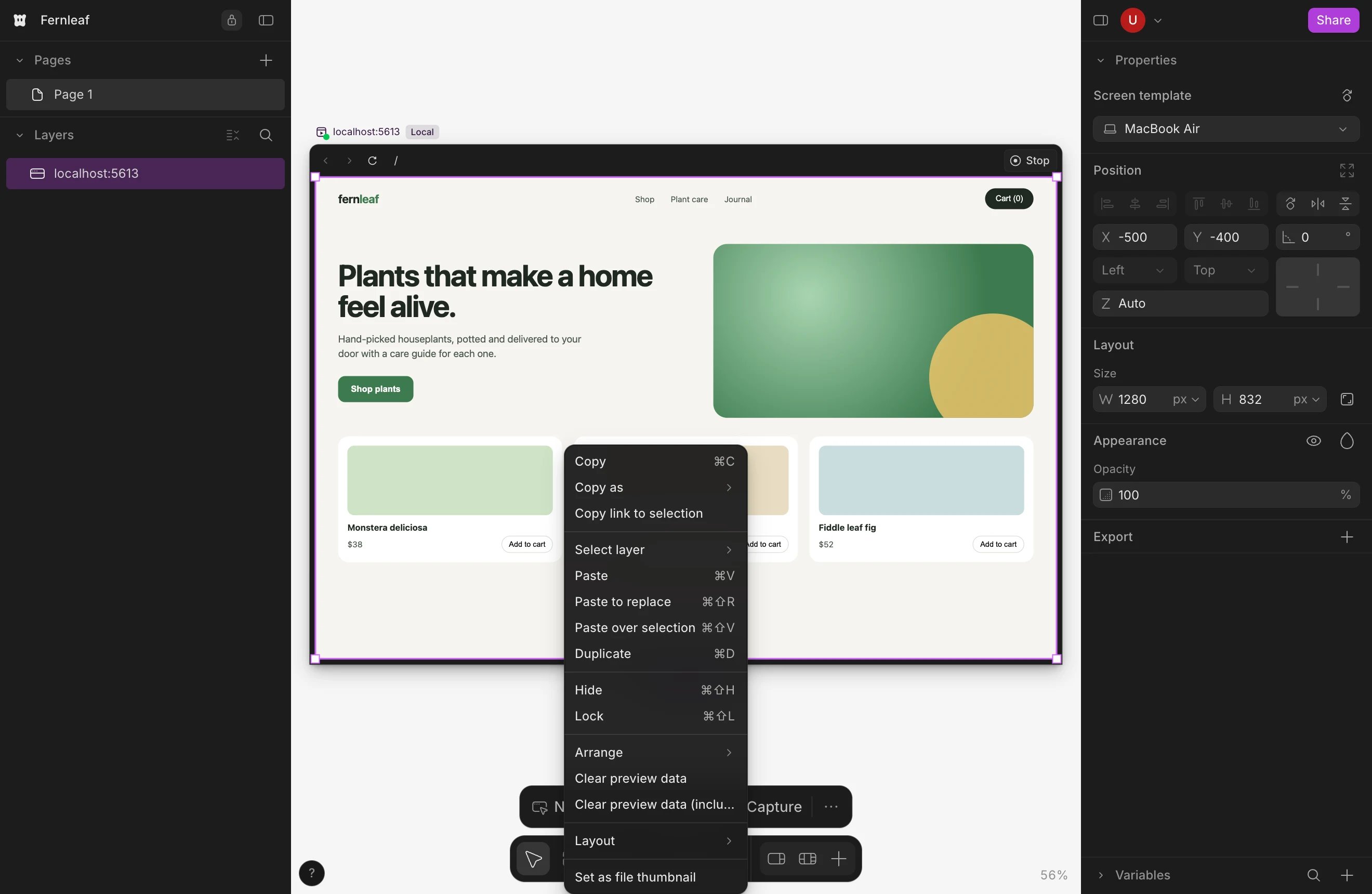
Clearing preview data resets the app in the Preview and makes Wonder ask for permissions again.- Right-click the Preview on the canvas. It has to be running.
- Choose one:
- Clear preview data removes the app’s local storage, Cache Storage and service workers, and forgets your permission answers. Cookies stay, so you usually stay signed in, unless your app keeps its sign-in in local storage.
- Clear preview data (including logins) also removes cookies and IndexedDB, which signs you out of your app.
If something goes wrong
- When the Preview can’t start or show your app, it shows a card that says why, and most cards have Fix with agent. See Fix Preview problems.
- Sign-in flows that leave the page work differently in a Preview. See Preview sign-in.
- You can’t start a Preview: you need edit access to the workspace, and the Wonder desktop app.