

Let your agent set it up
The first time you click Start preview in a repository with no start command, Wonder asks your agent to set it up. If your repository already has run commands for Conductor, Wonder opens the editor with them filled in instead. If the Preview on the canvas shows Set up your start command instead, click Set up with agent.- Your agent reads the repository and works out how your app starts. In the chat, this shows as Set up the Preview.
-
When it is done, the chat shows a Proposed Preview configuration card with what it found:
Rows the agent left empty are hidden.
- Check the commands, then click Save & start preview (or Save when this chat can’t start a Preview). Click Edit to change them first, or close the card to dismiss it.
These commands run on your computer
Saved commands run in a terminal on your computer, like any command you type. If the chat read a pull request from a fork, the card says Check these commands before you save: read each one before you save it.
Saved commands run in a terminal on your computer, like any command you type. If the chat read a pull request from a fork, the card says Check these commands before you save: read each one before you save it.
Type the start command yourself
- On the Set up your start command card, click Edit start command. If your agent can’t be reached, Wonder opens the same editor for you.
- Under Start command, type the command you use to run your app locally, such as
npm run dev. If Wonder found one command in your repository, it is already filled in. If it found several, they are listed under Found in this repo: click one to use it. - Click Save.
dev, start, serve and develop scripts in package.json, and for Django, Rails, Laravel and Go servers. It also picks up run commands you set up for Conductor, and the dev script of each package in a monorepo. If none fits, ask your agent instead.
Add a command for each part of your app
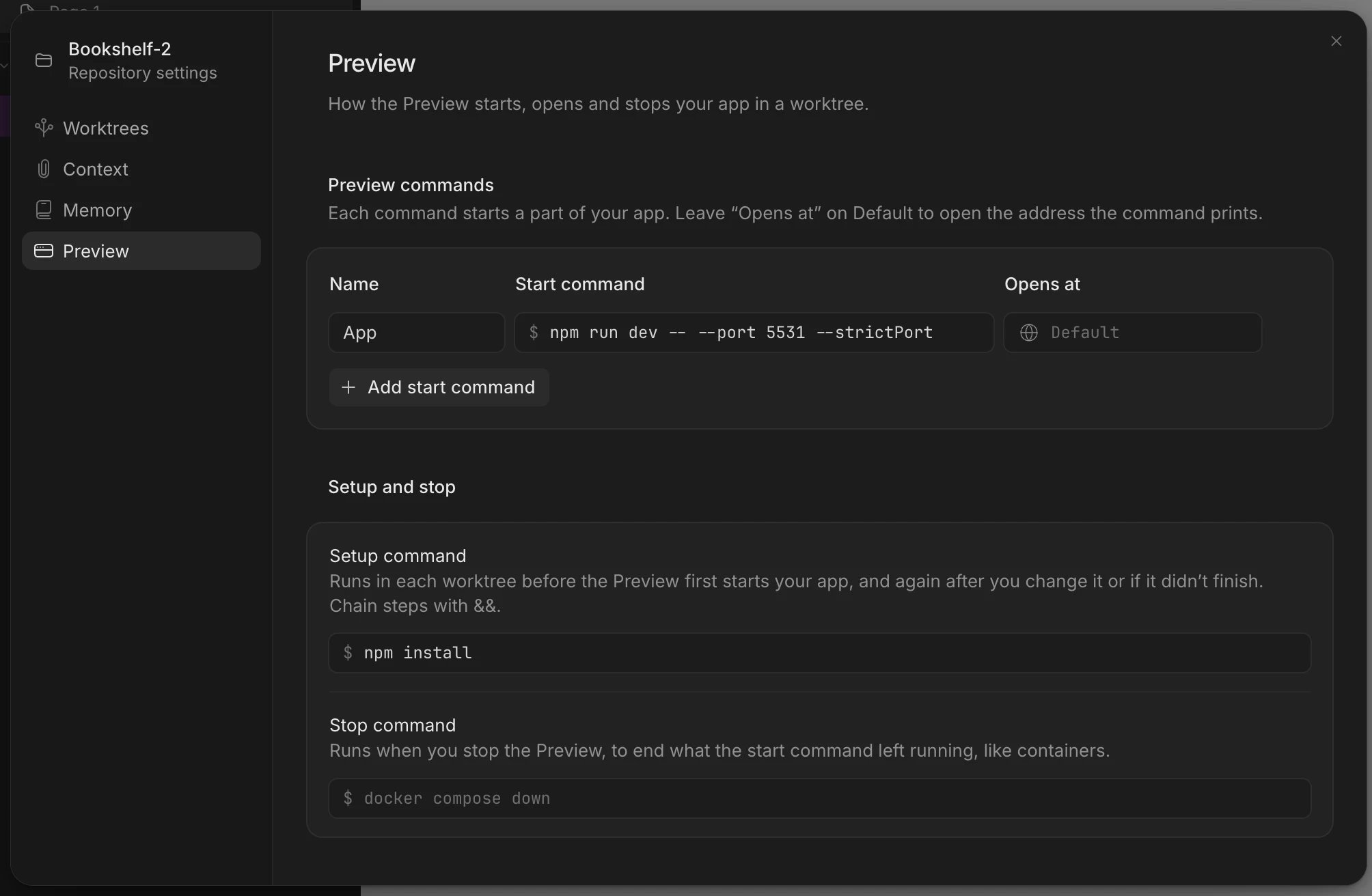
When your app has more than one part, such as a web front end and an API, give each part its own start command.- Open Repository settings > Preview.
- Under Preview commands, click Add start command.
- Give it a Name, such as
WeborAPI, and type its Start command.
Choose where the Preview opens
Opens at decides which address the Preview opens. Leave it on Default to open the address your command prints. Set it when your app runs behind a local domain, such ashttps://my-app.localhost, a Caddy site or a hosts-file name that points at this computer. The address has to resolve to this computer, and it needs https unless it ends in .localhost. Leave out the path.
Add a setup and a stop command
Under Setup and stop:- Setup command runs in each worktree before the Preview first starts your app, and again after you change it or if it didn’t finish. Use it to install dependencies or prepare a database. Chain steps with
&&, for examplenpm install && npm run db:migrate. One setup command applies to every part of your app. - Stop command runs when you stop the Preview, to end what the start command left running, like containers. For example,
docker compose down. With more than one start command, each part has its own stop command, named after it, such as Stop Web.
Change it later
Open the repository’s menu in the sidebar and choose Repository settings, then Preview. You can also open the menu next to Start preview in the chat header and choose Preview settings. Your Preview commands are saved on this computer, for this repository. They are not stored in the repository, and teammates set up their own.Environment variables
Your start command gets these variables, in this order. Each one overrides the one before it:- Wonder’s own environment.
WONDER_PREVIEW=1, so your app can tell it is running in a Preview.- The values in the main checkout’s
.envfile. - The values in the worktree’s own
.envfile. - Wonder’s Conductor variables (
CONDUCTOR_PORT,CONDUCTOR_WORKSPACE_PATH,CONDUCTOR_ROOT_PATHandCONDUCTOR_WORKSPACE_NAME), so commands you set up for Conductor work unchanged.
.env therefore wins over the main checkout’s, and either file can set WONDER_PREVIEW to turn the marker off. When your app loads its own env files (.env, .env.local, .env.development or .env.development.local in the folder it runs in), the values it loads win. Wonder never takes variables that choose what a program loads or runs, such as HOME, PATH or NODE_OPTIONS, from a .env file, nor WONDER_* variables other than WONDER_PREVIEW.
Wonder does not set PORT. If your app needs a fixed port, put it in the start command, for example npm run dev -- --port 5173.
Addresses the Preview can open
The Preview only shows your app from this computer:localhost,127.0.0.1(and the rest of127.x.x.x) and[::1]. Wonder shows all of them aslocalhost.- Names ending in
.localhost, such asmy-app.localhost. - The Opens at address of a start command that is running.
0.0.0.0. Point the Preview at localhost. A LAN address, or a name that doesn’t point at this computer, can’t be previewed. To use a hosts-file name, set it as a start command’s Opens at address, with https.
Local HTTPS
If your app serveshttps on its own port with a self-signed certificate, the Preview accepts that certificate once Wonder has checked that your start command owns the port. If your app runs behind a local proxy whose certificate this computer doesn’t trust yet, the Preview shows how to trust it. See This computer doesn’t trust the address in Fix Preview problems.
If something goes wrong
- The Preview shows a card that names what went wrong, and most cards have Fix with agent. Fix Preview problems lists every card.
- Your app starts in your terminal but not in the Preview: check that Start command is the exact command you type, and that a Setup command installs what it needs in a fresh worktree.
- A
.envvalue doesn’t reach your app: check the order under Environment variables. Your app’s own env files win.