

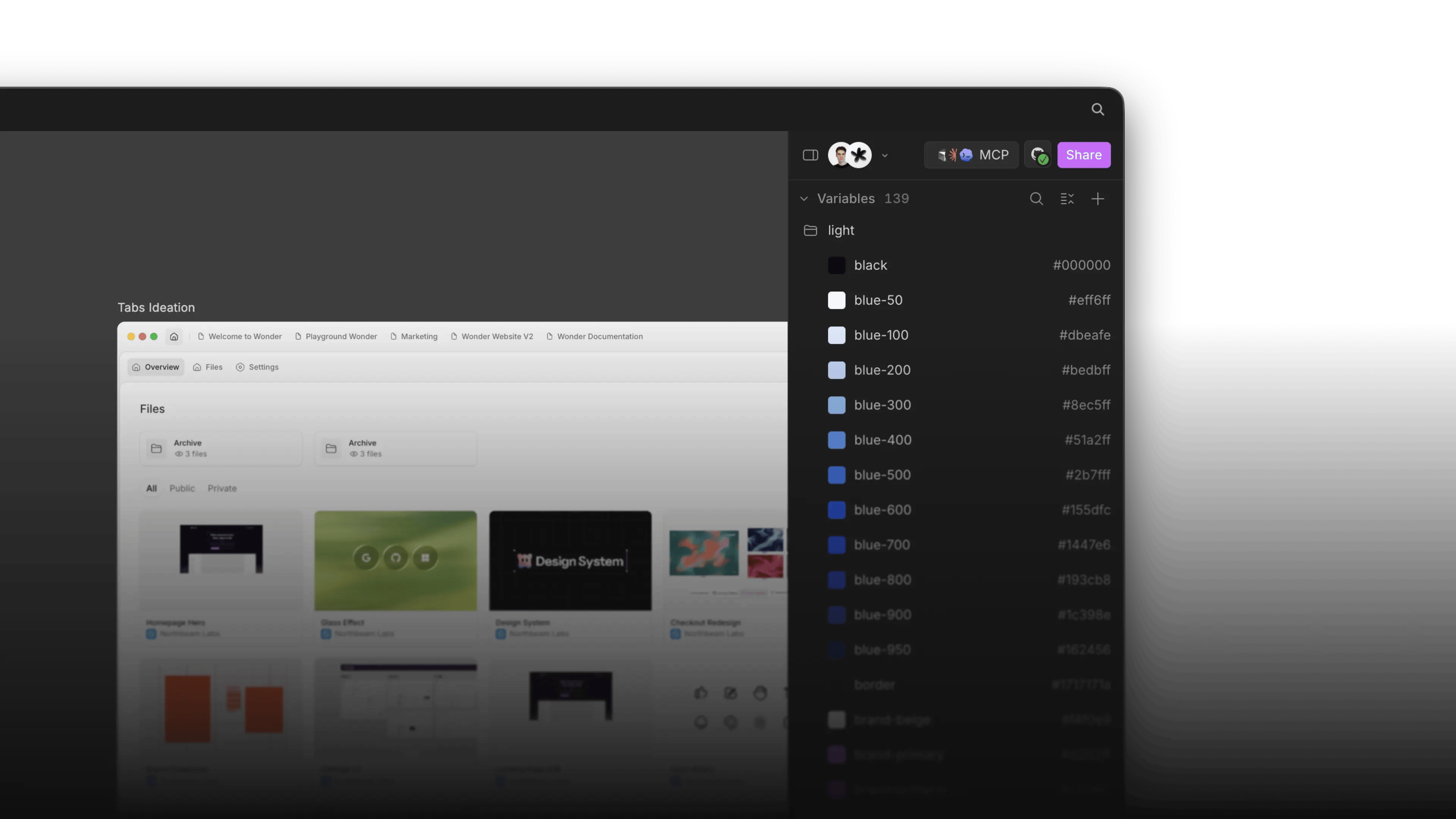
Token types
Currently we support the following types of variables:- colors
- spacing
- gap
- radius
- width & height
- opacity
- typography
- font family
- font size
- font weight
- letter spacing
- line height
Add / Create variables in Wonder
To use variables in Wonder, you can either import them from your codebase, ask Wonder AI to create them for you, or create them manually by hand.From your codebase
- Connect your Wonder file to your codebase via a GitHub repository
- Ask Wonder AI to import the variables from your codebase
- Enable the variables panel in the sidebar
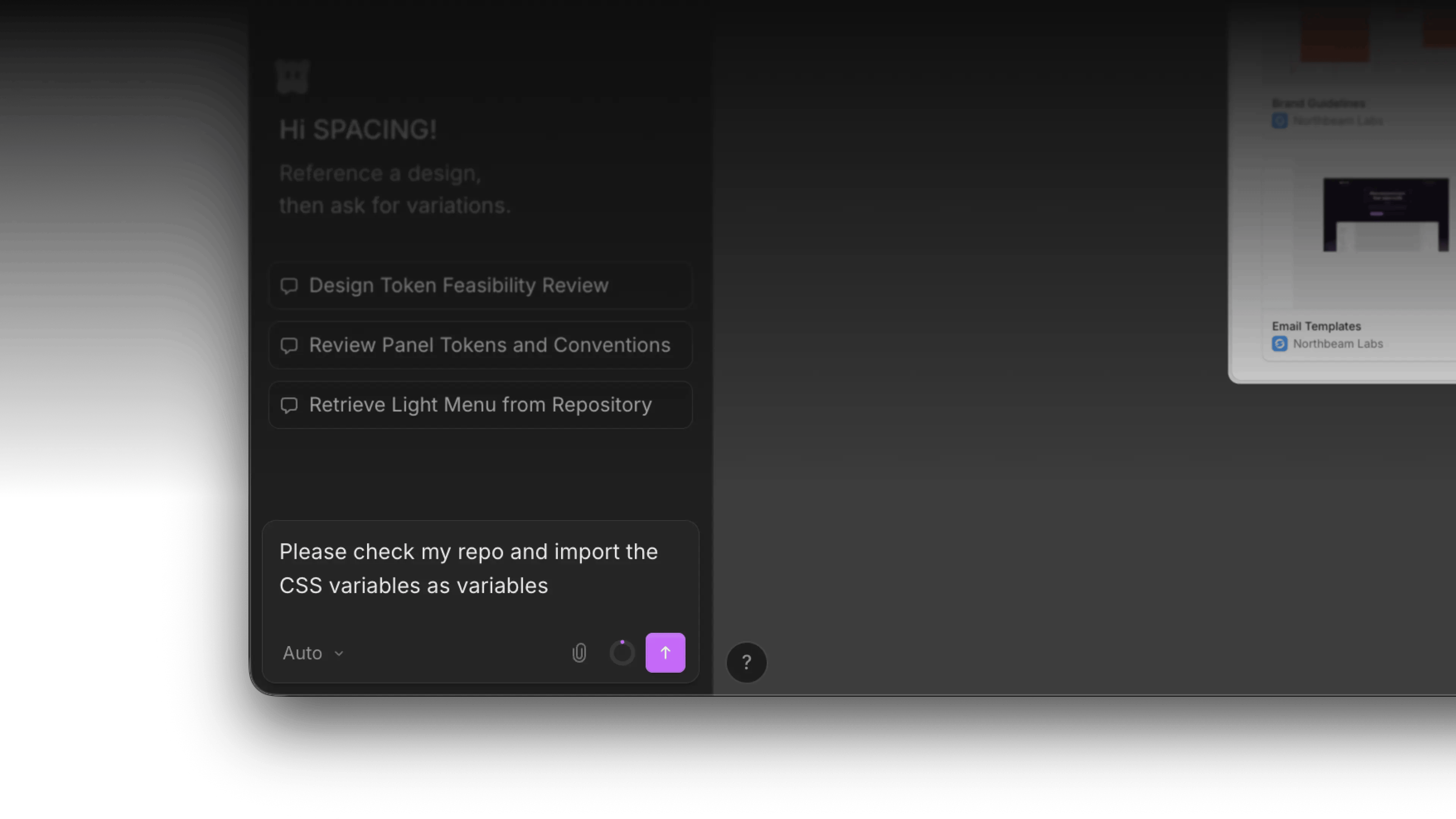
Ask Wonder to generate variables
- Open the chat panel
- Ask Wonder AI to generate variables based on your context
- Enable the variables panel in the sidebar
Create manually
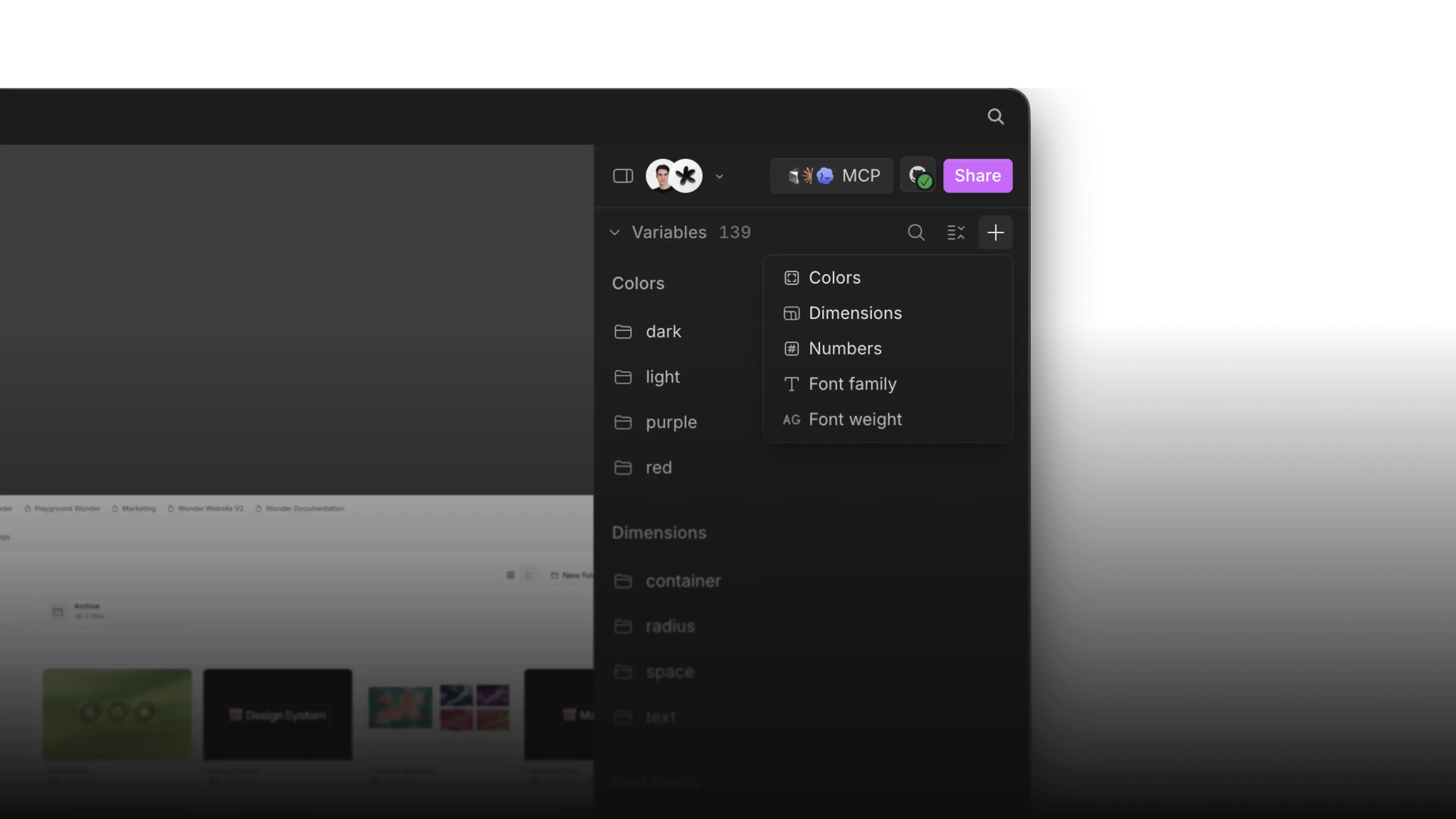
- Open the variables panel in the sidebar
- Click on the little ”+” in the top right corner
- Select your variable type
- Give it the correct name
- Change the value
- Optional: with a right-click on the value, you can reference another variable.
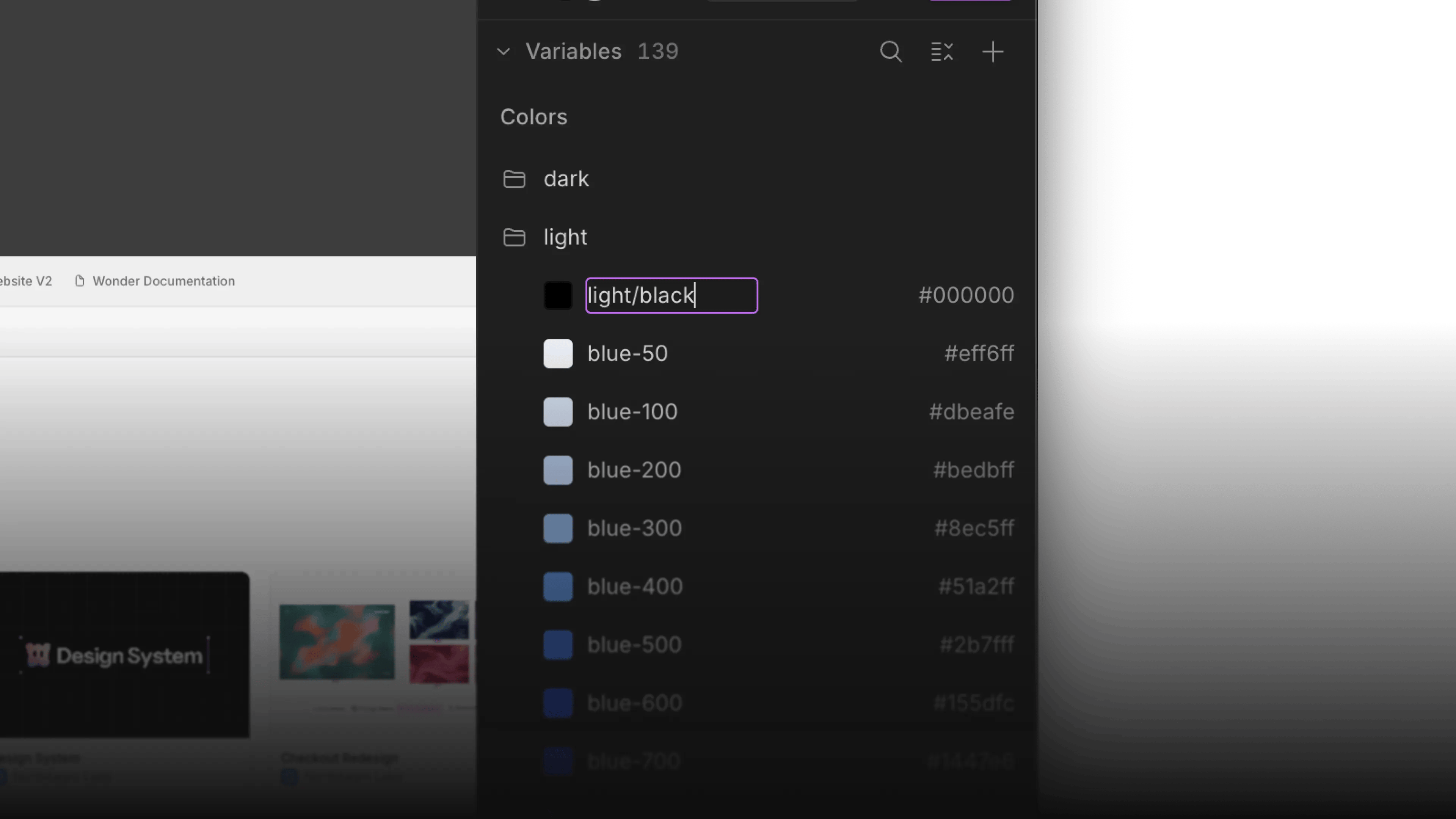
Variable naming
You can organize variables in folders by changing the name toneutral/500. This will create a neutral folder and nest the 500 variable inside it. The raw value of that variable when exported will stay neutral-500. So it is just a visual organizing tool for you and your team.
Use a variable
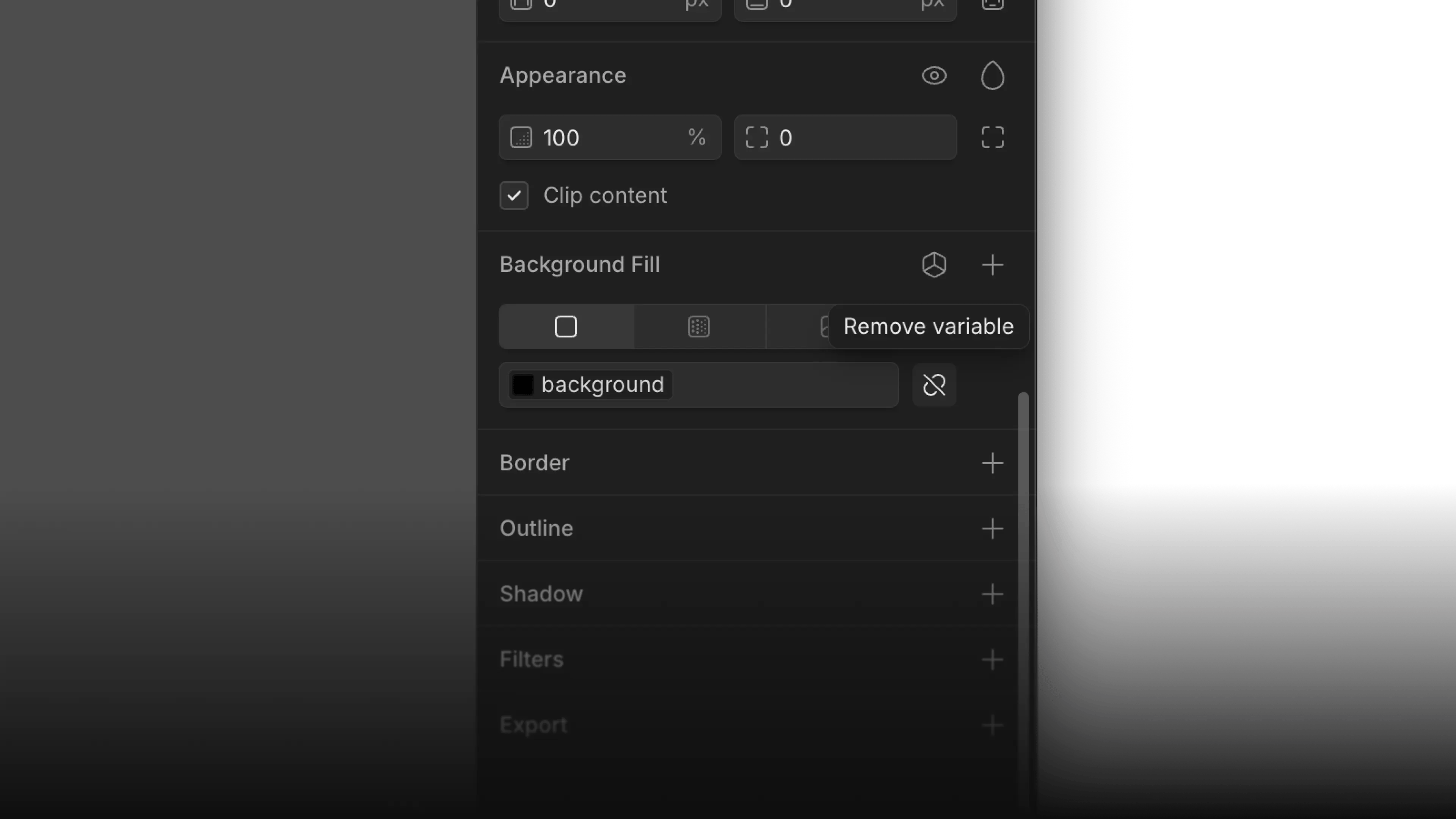
You can assign variables to the supported properties via the visual reference for variables "". By clicking this icon, a dropdown will appear which lets you search for your desired variable.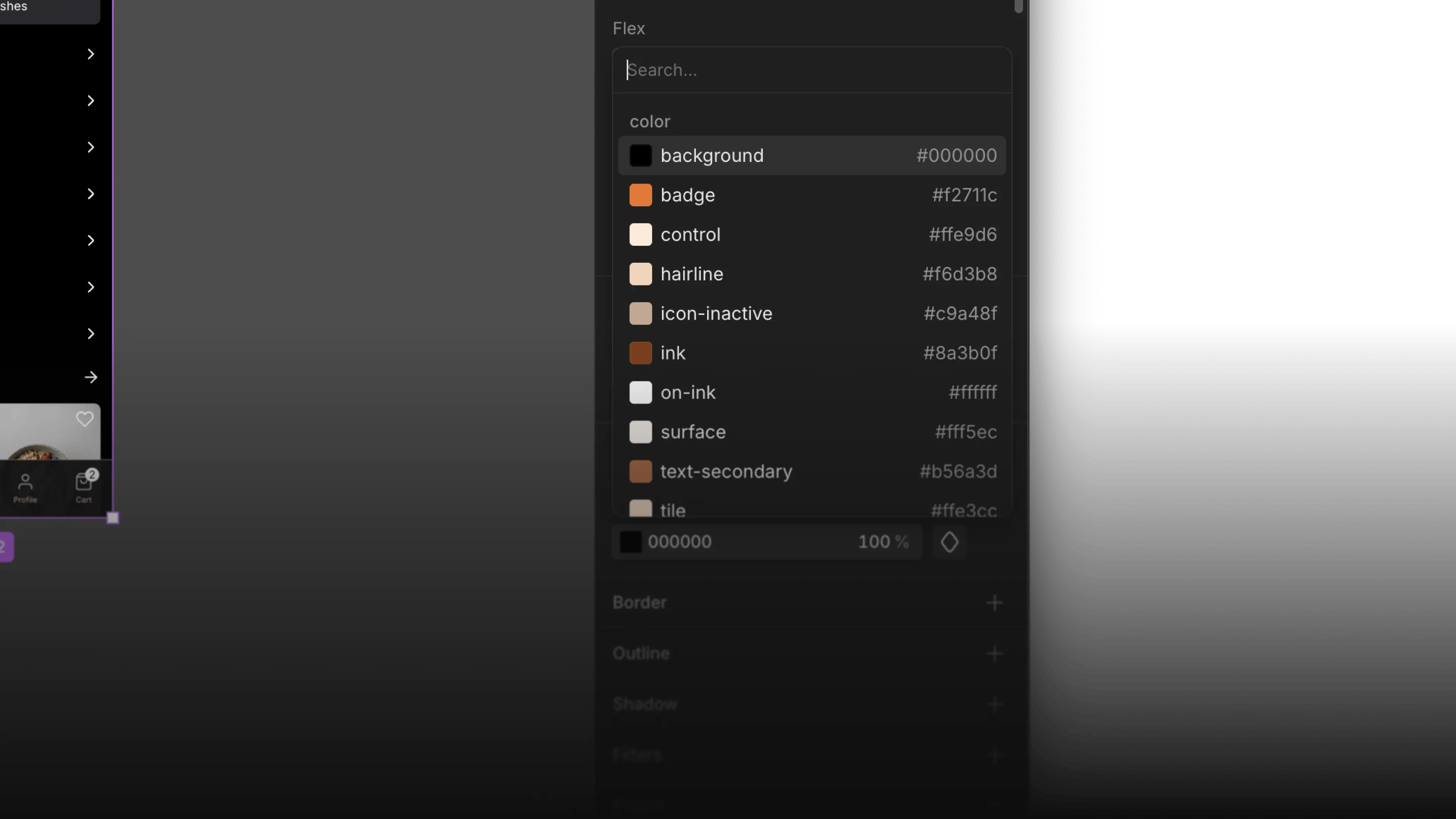
Synced with code
When a repo is connected, variable values track the source: edit them in code or on the canvas and both stay aligned. When you update something, you can also open a PR to update the variables in the codebase.
When a repo is connected, variable values track the source: edit them in code or on the canvas and both stay aligned. When you update something, you can also open a PR to update the variables in the codebase.