

Capture a screen onto the canvas
- Start the Preview and open the screen you want, in the state you want, such as a dialog open or a form filled in. See Preview your running app.
- Select the Preview and click Capture in the bar at the bottom of the canvas.
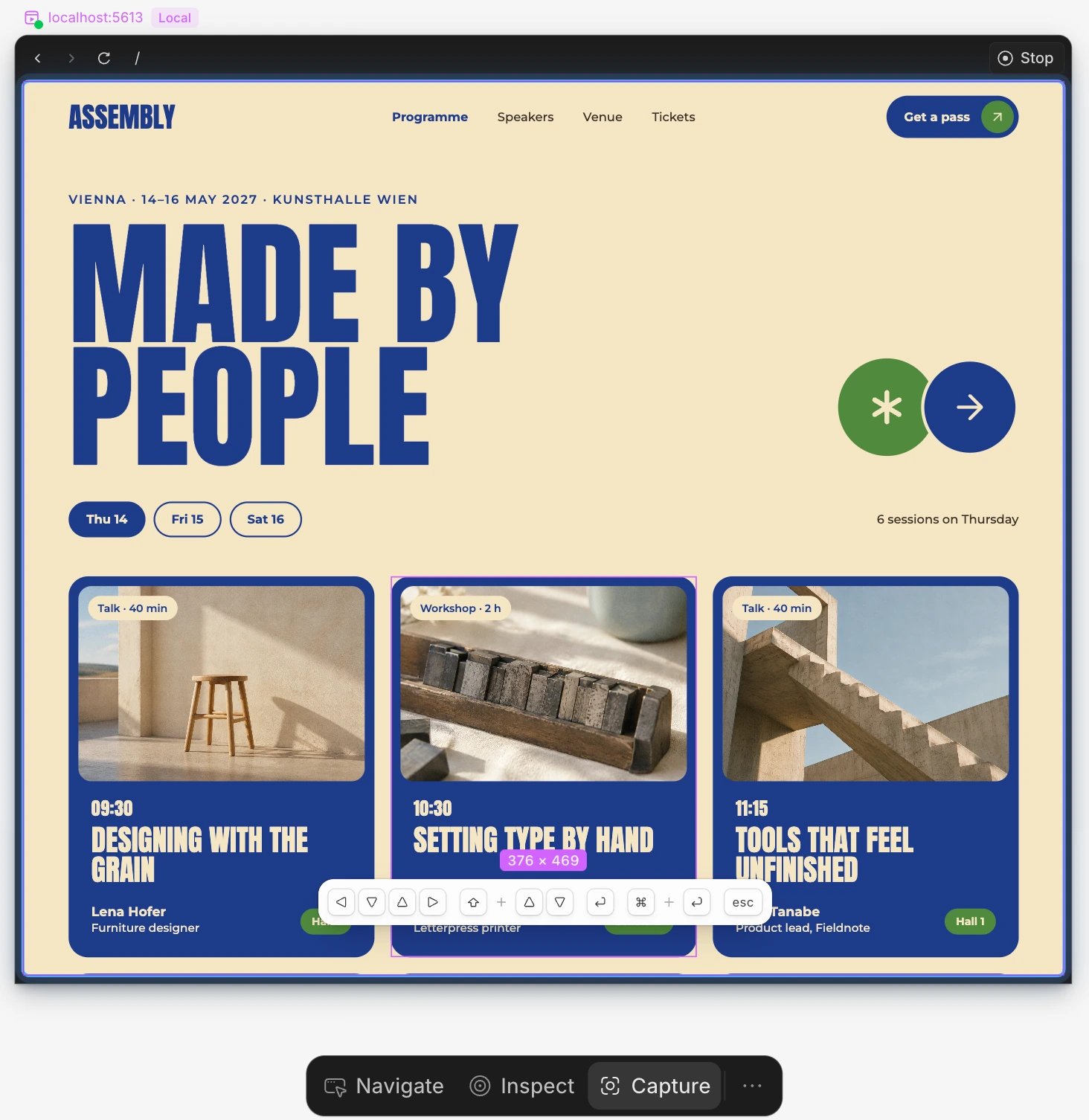
- Hover over your app to highlight a part of it, then pick what to capture:
- Click the highlighted element, or press Enter, to capture that part.
- Press ⌘ Enter, or ⌘-click, to capture the full page.
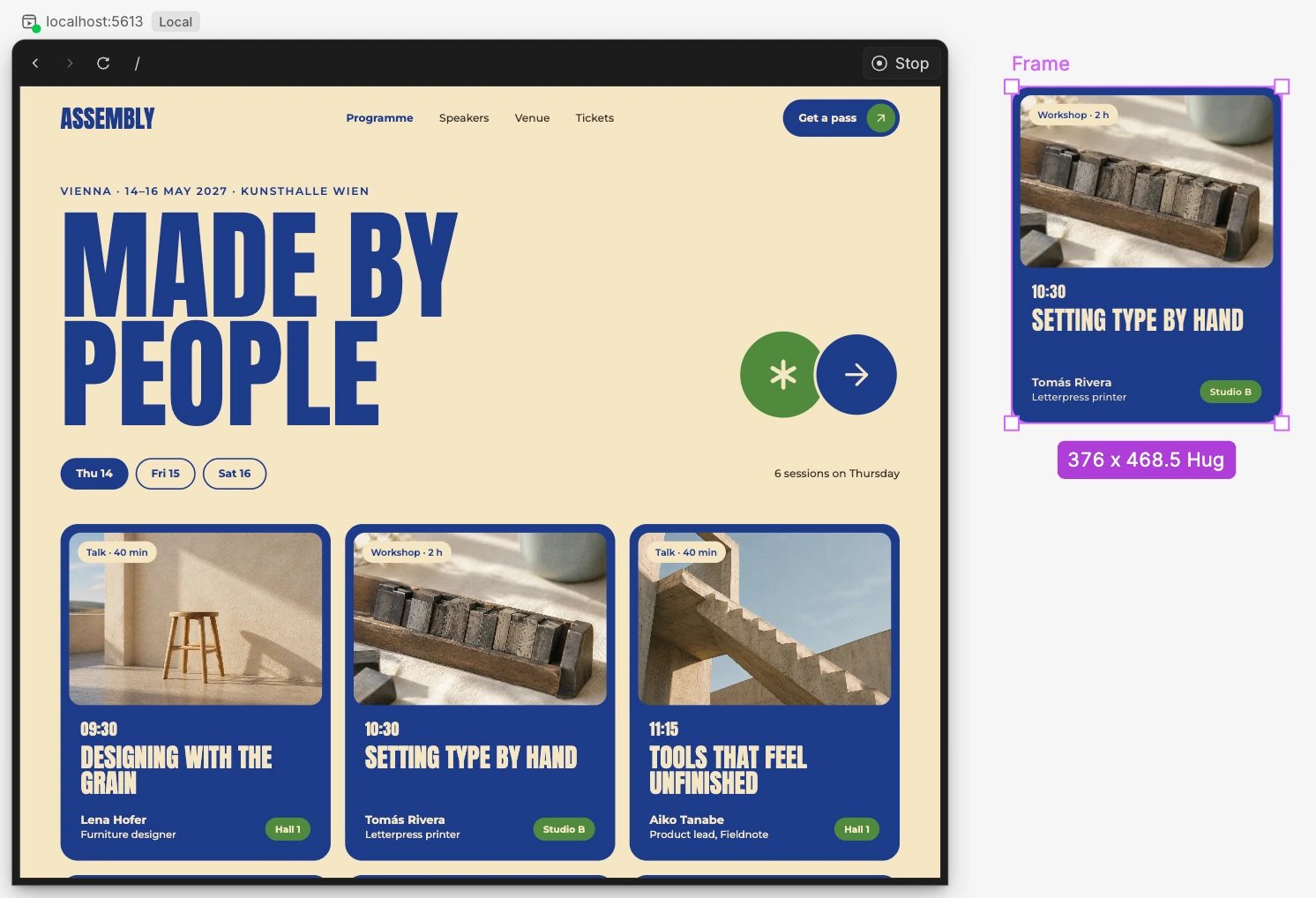
- A part is a frame at the size it had on screen.
- A full page is the whole page, not just the part in view, at the Preview’s current width. To capture a phone layout, change the Preview’s screen size first.
- Where your app’s CSS uses a variable, such as
var(--brand), and your file has a variable with the same name, the capture is linked to it. The fonts your app uses are added to the file.
Copy a capture to another file
A capture is ordinary layers, so copy it like any design:- Select the capture on the canvas and press ⌘ C.
- Open the other file and press ⌘ V.
Explore on top of a capture and send it to your agent
- Change the capture like any design: move things around, change text, colors and spacing, or ask your agent in the chat to try ideas on it.
- Select the frame you want built and press ⌘ L to add it to your message, or right-click it and choose Add context. When Attach selection to chat is on in Settings > Preferences (it is by default), selecting it is enough.
- In the chat, say what to do with it, for example “update the settings page in the app to match this design”, and send.
Let your agent capture
Ask your agent, for example “capture the pricing page onto the canvas”. It captures its own worktree’s Preview the same way, next to the Preview, and can capture a single part of the page. The chat shows Capturing the Preview onto the canvas. Your agent only captures when you ask it to.How this differs from Wonder Capture
Both use the same capture engine, so the picker, its shortcuts and the result are the same.If something goes wrong
- Capture is greyed out. Start the Preview.
- There’s no Capture button. You can capture only a Preview you started, or a published one, in a file you can edit, with only the Preview selected.
- This design has too many elements to capture. Pick a smaller part of the page instead of the full page. The same goes for too deeply nested, too large and too complex.
- Nothing was added. Capturing stops if your app reloads or goes to another page, or if the Preview stops. Wait for the page to settle and capture again.
- A video or animation looks frozen. Videos and
<canvas>drawings come through as still images. - An image or font is missing. Images and fonts from other sites come through only when that site allows it.
- Only part of a long list came through. Lists that draw only the rows in view capture only those rows.