

Turn on Inspect
- Start the Preview. See Preview your running app.
- Select the Preview, then click Inspect in the bar at the bottom of the canvas, or press ⌘ ⇧ I. Its tooltip calls it Inspect element.
Pick an element
Hover over your app to see an outline on the element a click would pick, then click it. The picked element gets a thin outline. While you hover over it, its children get dotted outlines.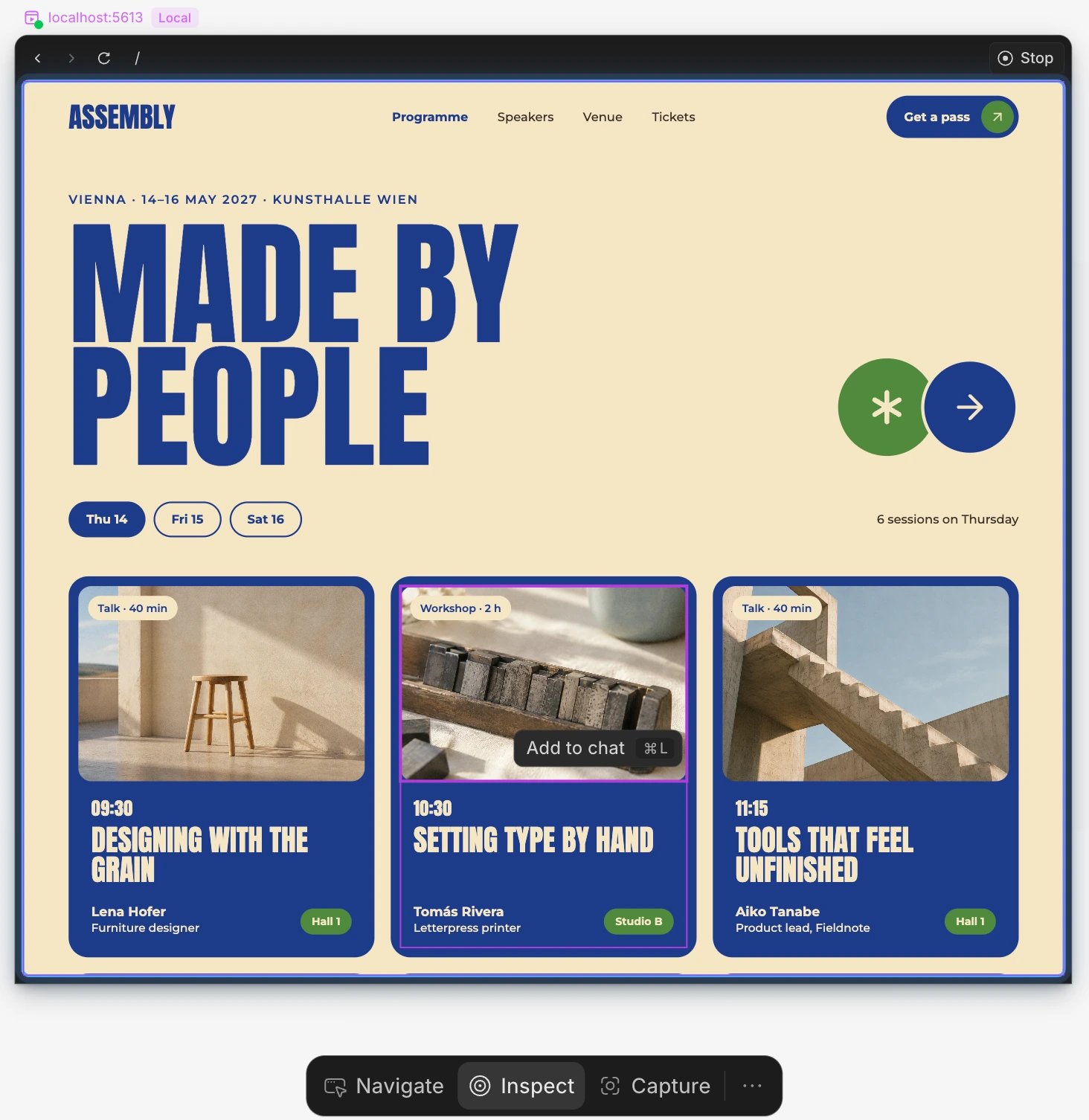
- Shift-click adds an element to what you picked, or removes it.
- ⌘-click picks the deepest element under the pointer.
- Double-click picks the child inside the element you picked.
- Click the page background to pick nothing.
Check size, spacing and CSS
- Hold ⌥ over an element to see its tag,
#id, width and height, with its padding, margin and gaps marked on the page. - Hold ⌥ over an element and press Space to see the CSS it ends up with. Click to keep that panel open, and press Esc to close it.
Add an element to your chat
- Pick one or more elements.
- Click Add to chat next to the element, or press ⌘ L.
- In the chat, say what should change, for example “make this button full width on mobile”, and send.
Leave Inspect
Press Esc, or choose another mode in the bar, such as Navigate. If the CSS panel is open, the first Esc closes it. While Inspect is on, Back, Forward and Reload shortcuts, undo and redo don’t apply. Pasting styles onto a picked element isn’t possible either: Wonder says Pasting styles is canvas only.If something goes wrong
- Inspect is greyed out. Start the Preview first. A published Preview has no Inspect: inspect your local Preview instead.
- Open a chat in this Preview’s worktree, then add this element again. That worktree has no chat yet. Start one from the worktree in the sidebar and click Add to chat again.
- The chat is no longer available. The chat was closed or deleted. Open another chat in the worktree and try again.
- The inspected element changed before it could be added. What you picked changed while it was being added, for example by another click. Pick it again and click Add to chat.
- This Preview lost its worktree binding. Reopen the Preview from the worktree and try again.
- The agent is unavailable or its account changed. Reconnect your agent in the chat, then try again.