

Who can edit together
Owners, admins and editors can edit a file at the same time. Each of them takes a paid seat. Viewers are free: they see changes arrive live, but they can’t edit, and they don’t see or share cursors. See Members and roles. On the Free plan, only the workspace owner can edit. Everyone else in the workspace opens files as a viewer, and admins and editors see This workspace is on the free plan. Only the owner can edit. To edit together, upgrade the workspace to Pro and give your teammates the Editor or Admin role.Edit a file together
Open the same file as your teammates and start editing. There is nothing to turn on.- Cursors. Each person’s cursor is an arrow in their color with their name next to it. You see the cursors of people on the same page as you.
- Selections. The layers someone has selected, and the layer under their pointer, are outlined in their color.
- Undo. Undo only takes back your own changes, never someone else’s.
- Colors. Everyone in the file gets a different color, from a set of 12. If you open the file in two tabs, you appear twice, once per tab.
See who’s here
The avatars of everyone in the file are at the top right, next to Share. Yours comes first. Hover an avatar to see the person’s name. When there isn’t room for everyone, the last avatar shows + and how many more people are here. Click the avatars to open the list of people in the file, under Currently viewing. Type in Find someone… to search it. Hover a person to highlight their cursor on the canvas. Your own row is at the bottom, with three buttons for how you appear: Hide cursors, Appear busy and Go invisible. Hover a button to see its name.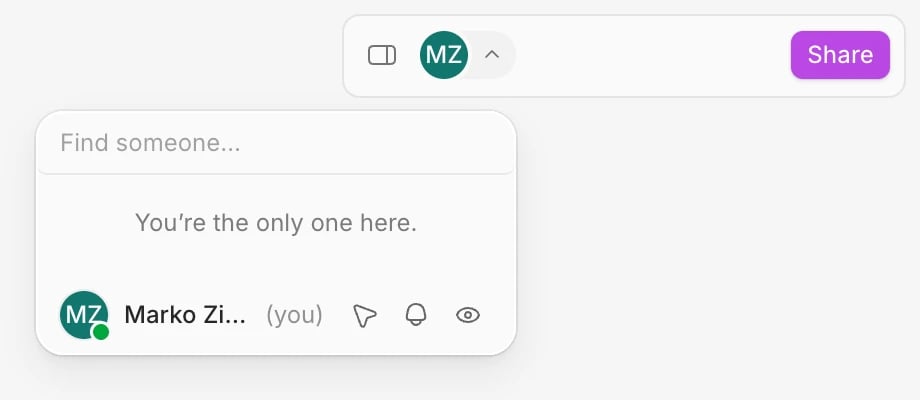
You can also see who’s around outside the canvas: the pages list shows a colored dot on each page someone is on, and your files show the avatars of people who have them open.
Agents editing a file don’t appear in the list of people.
Follow someone
Following someone makes your view match theirs, so you see what they see as they present or walk you through a design.- Click the avatars at the top right, next to Share.
- Click the person you want to follow.
Hide other people’s cursors
To stop seeing everyone else’s cursors, open the list of people and click Hide cursors, the cursor button in your own row. Click it again (Show cursors) to see them again. This only changes your own screen. Others still see your cursor, and you still see their selections.Appear busy or invisible
Open the list of people and use the buttons in your own row:- Appear busy (the bell) shows you as busy, and nobody can follow you. Anyone following you stops. Click Clear busy to be available again.
- Go invisible (the eye) hides you from everyone else: your avatar, cursor and selections disappear for them, including from the avatars on your files. You still see everyone. Click Become visible to show up again.
If something goes wrong
- You can’t see anyone’s cursor. Check that you haven’t clicked Hide cursors, and that you’re on the same page. Viewers don’t see cursors.
- The list of people doesn’t open. You’re a viewer in this file, so you only see who’s here, not the controls. Ask a workspace owner or admin for the Editor role, or, on the Free plan, the owner to upgrade.
- Canvas connection lost. Your changes are kept and sync when you reconnect. Click Reconnect, or check your internet connection.
- You can’t follow someone. They appear busy.