

Browse your files
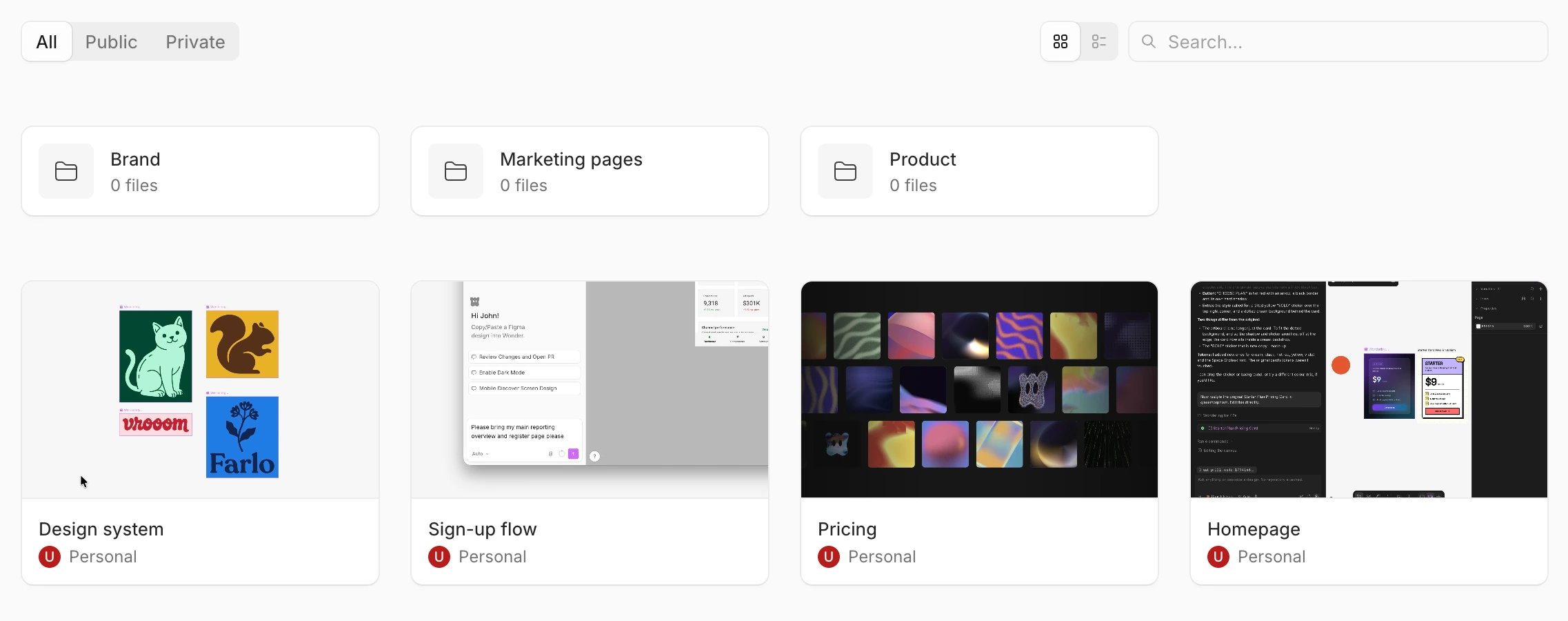
In the browser, each workspace has an Overview tab and a Files tab. Overview shows up to four files at the top: under Pinned, or under Featured (the newest public files) when nothing is pinned. Files lists all its files and folders. The desktop app opens straight to the files. Folders come first, then files: pinned files, then the most recently edited. Above them:- Grid view and List view switch between cards and rows. The list shows each file’s Name, Visibility, Active users and Last edited at.
- All, Public and Private filter the files by who can open them. See Share a file.
- Search… finds files and folders by name in the folder you’re in. Press Esc to clear it.
Create a file
- Open your files, and the folder you want the file in.
- Click New file.
Organize files in folders
Create a folder
- Open your files, and the folder you want the new one in.
- Click New folder.
- Type a name and press Enter.
Rename a folder
Click ⋯ on the folder, or right-click it, and choose Rename. You can also select it and press F2, or double-click the folder’s name in the path at the top while you’re inside it.Move files and folders
- With the menu. Click ⋯ on a file or folder and choose Move to folder, then a folder. Remove from folder moves it to the top level. New folder creates a folder with the file in it.
- By dragging. Drag files or folders onto a folder to move them in. Drop them on a folder in the path at the top to move them up, or on Files to move them to the top level.
- Into a new folder. Drag one or more files onto another file and hold them there for a moment, until the outline turns dashed. Drop them, and Wonder puts them all in a new folder and shows Merged … files into a new folder with Undo.
Copy a link to a folder
Click ⋯ on the folder and choose Copy link. The link opens the folder for anyone in the workspace.Select several files at once
In your files:- ⌘-click (Ctrl-click on Windows) adds or removes one file or folder.
- Shift-click selects everything between the last one you clicked and this one.
- ⌘A selects everything in the folder you’re in.
- Esc, or a click on an empty spot, clears the selection.

- Move: move them to a folder.
- Delete: move them to trash.
- ⋯: Make public or Make private.
Pin a file
Click ⋯ on a file and choose Pin. Pins are shared with everyone in the workspace. Pinned files come first in your files, and the four most recently pinned show at the top of Overview, the workspace’s public profile. People outside the workspace only see pinned files that are public. To choose which files Overview shows, open it in the browser, click Customize your pins, select up to four files and click Save pins. To unpin a file, choose Unpin in its ⋯ menu, or click the pin on its card.Set a file’s thumbnail
A file’s card shows a picture of the file. Wonder takes it from what’s on the canvas when you leave the file, until you choose one yourself.- From a selection. In the file, select the layers you want, right-click and choose Set as file thumbnail. You can also run Set selection as file thumbnail from the command palette.
- From an image. In Grid view, click ⋯ on the file and choose Change thumbnail, then pick an image. You can also drag an image onto the card.
Move files and folders to trash
- A file. Click ⋯ on the file and choose Move to trash. In an open file, choose Move to trash in the Wonder menu’s File submenu.
- A folder. Click ⋯ on the folder and choose Move to trash. The files and folders inside move up one level. Nothing inside is deleted.
- Several. Select them and click Delete, or press Delete.
Find a file from anywhere
Press ⌘K and type part of a file’s name. Up to six matching files are listed under Files, with the folder each one is in. Choose one to open it. The command palette searches the workspace you’re in. On your files, it also lists matching folders under Folders. Go to files takes you back to your files from inside a file. In the desktop app, the New tab button in the tab bar opens a list of your previews, recent files and pinned files, and a search for files.If something goes wrong
- You don’t see New file, New folder or ⋯ on a file. You’re a viewer in this workspace, or it’s a team workspace on the Free plan or with a lapsed subscription, and you’re not the owner.
- Search doesn’t find a file. Search looks only in the folder you’re in. Go back up to Files in the path at the top, or press ⌘K and search the whole workspace.
- File created, but couldn’t be moved. The file was created at the top level of the workspace. Find it there and move it into the folder.
- Select up to 500 files at a time. Work on the files in smaller groups.
- That folder is no longer available. The folder was moved to trash.
- This workspace has reached its limit of 10,000 files. Email the address in the message to add more.