

Private and public files
New files are private.
Wonder has no per-file permissions: you can’t give someone access to one file only. To let someone edit, invite them to the workspace. To let anyone view, make the file public.
Make a file public or private
Owners, admins and editors can change a file’s visibility. On the Free plan, only the owner can.- In the file, click Share at the top right.
- Under File visibility, choose Public or Private.
- Confirm with Make public or Make private.
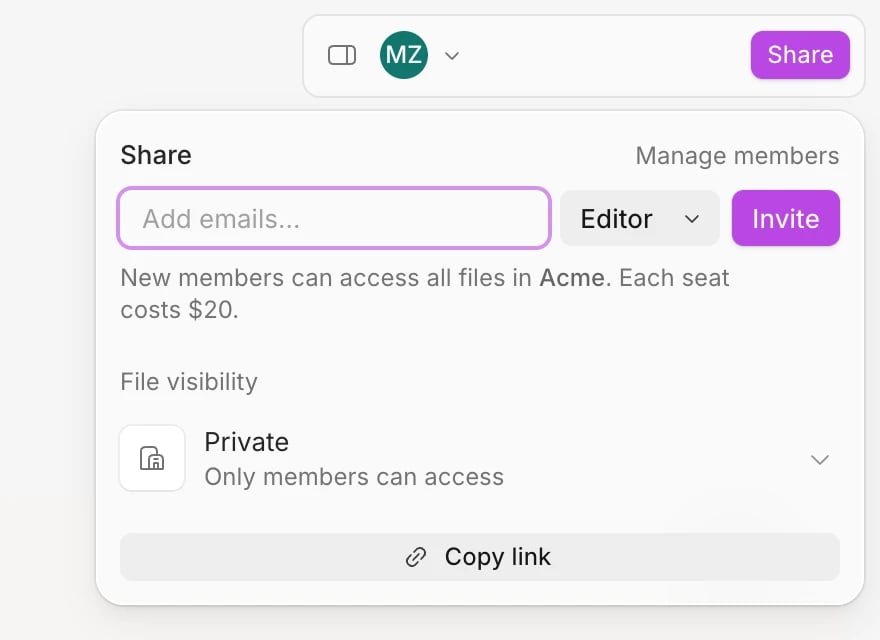
Copy a link
- To the page you’re on. Click Share, then Copy link. The link opens the file on that page.
- To a layer. Right-click one layer on the canvas and choose Copy link to selection, or find it in the command palette. The link opens the page, selects the layer and zooms to it.
- To a public file. In your files, open the ⋯ menu on a public file and choose Copy link. The link opens the file on the page the person last had open, or its first page.
Invite people from the file
The Share panel has the same invite form as Settings › Members. Invites go to the workspace, not just the file: new members can open every file in it.- Click Share.
- Enter one or more email addresses in Add emails….
- Choose a role and click Invite.
Open a file you can’t access
- You’re signed out. Wonder asks you to sign in, then opens the file if you have access.
- You’re signed in but not a member, and the file is private. Wonder opens the workspace’s public profile instead, which lists its public files. There’s no way to request access: ask someone in the workspace to invite you or make the file public.
- The file is made private while you’re viewing it. Wonder says you no longer have access and takes you to the workspace’s public profile.
What viewers can do
Workspace members with the Viewer role, and anyone opening a public file, can:- move around the canvas with the Move (V) and Hand (H) tools;
- open the Pages and Layers panels and select layers to see how a design is built (both side panels start hidden, so the canvas has the space);
- export with the Export section of the right-hand panel: PNG, JPG, WebP, PDF, code (Tailwind or CSS), and SVG when everything selected is an SVG;
- copy layers, copy them as code, PNG or a prompt, copy their styles, and copy a link to a layer.
If something goes wrong
- You don’t see Share. Viewers can’t share a file. On the Free plan, only the owner can.
- A link opens the workspace’s profile instead of the file. The file is private and you’re not a member. Ask to be invited.
- Couldn’t find the linked content on this page. The layer in the link was deleted or moved to another page.
- Copy link is missing on a file in your files. It only shows on public files, for people who can edit. Open the file and use Share › Copy link.