

Who can move a file
You need both of these:- In the file’s current workspace, you’re the owner or an admin, and you can edit there. When a team workspace is on the Free plan, or its subscription has lapsed, only its owner can edit. In your personal workspace, you’re the owner.
- In the workspace you’re moving it to, you’re at least an editor, and you can edit there. The same rule applies: a team workspace on the Free plan, or with a lapsed subscription, only takes files from its owner.
Move a file
- Go to your files and find the file.
- Click ⋯ on the file, or right-click it, and choose Move to workspace.
- Choose the workspace to move it to. Wonder shows the destination’s name and address under the list.
- Click Move file.
What moves with the file and what doesn’t
Anyone who has the file open in its old workspace is taken out of it and sees This file was moved to another workspace by another member. Members of the new workspace find it in that workspace’s files.
Which workspaces are listed
The list shows every other workspace you belong to that can take the file:- you’re an editor, admin or owner there, and you can edit there (it isn’t a team workspace on the Free plan, unless you’re its owner);
- it hasn’t reached its file limit;
- a private file has no more pages than the workspace allows. See Plans and limits.
If something goes wrong
- You don’t see Move to workspace. Only owners and admins of the file’s workspace can move it, and only while they can edit there. Ask an owner or admin to move it for you.
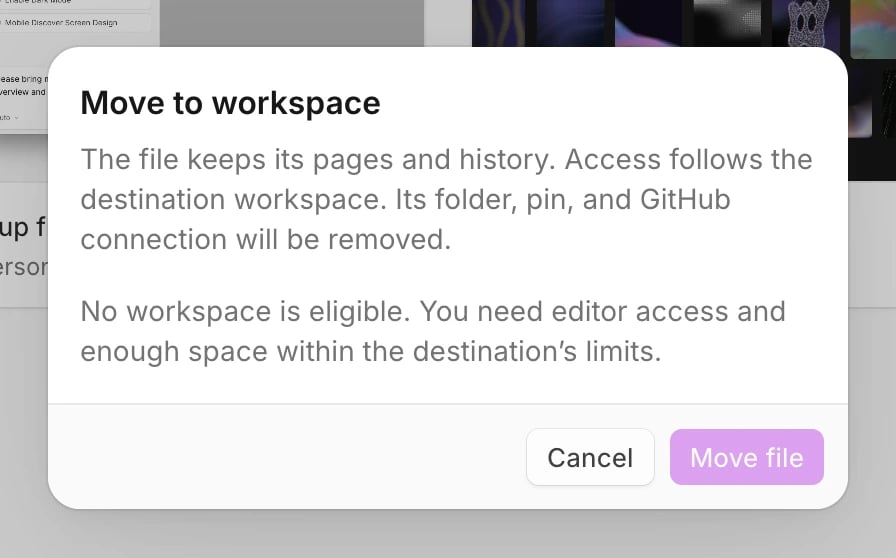
- No workspace is eligible. No other workspace you belong to can take the file. See Which workspaces are listed.
- The list of workspaces doesn’t load. Read the message in the dialog, then click Try again.
- The destination workspace has reached its limit of 10,000 files. Email the address in the message to ask for more, or choose another workspace.
- This file has more pages than the destination workspace allows. Delete some pages, or choose another workspace.
- Wait for this file’s preview to finish publishing, then move the file again. A publish from this file is still running. Wait for it to finish, then move the file.
- This workspace is on the free plan. Only the owner can edit. The destination is a team workspace whose subscription has lapsed, and you’re not its owner. Ask the owner to upgrade, or choose another workspace.
- This file changed while it was being moved. Someone else moved the file, or made it public or private, at the same moment. Move it again.