

Roles
Every member can open every file in the workspace, including private ones. See Share a file for how people outside the workspace can see a file.
On the Free plan, or when a workspace’s subscription has lapsed, only the owner can make changes, including inviting, changing roles and removing people. Admins and editors are treated as viewers until the workspace is on Pro, and adding admins or editors needs Pro. Viewers are free on every plan. See Workspaces. The rest of this page describes a workspace on Pro.
What a seat costs
Owners, admins and editors each take a paid seat on Pro. For the price per seat, see Plans and limits. The owner manages seats and billing in Manage your subscription.- Adding a seat. When someone joins as an admin or editor, or a viewer gets one of those roles, the extra seat is charged right away for the rest of the current billing period. If a seat you’ve already paid for this period is free, nothing more is charged.
- Freeing a seat. When you remove an admin or editor, or make them a viewer, the seat stays paid until the end of the billing period. There’s no refund for the rest of the period.
- Invites. Sending an invite costs nothing. The seat is charged when the person accepts.
Invite people
Owners and admins can invite people at any role. Editors can invite viewers.- Open Settings › Members and click Invite member. You can also click Share in a file, which has the same invite form.
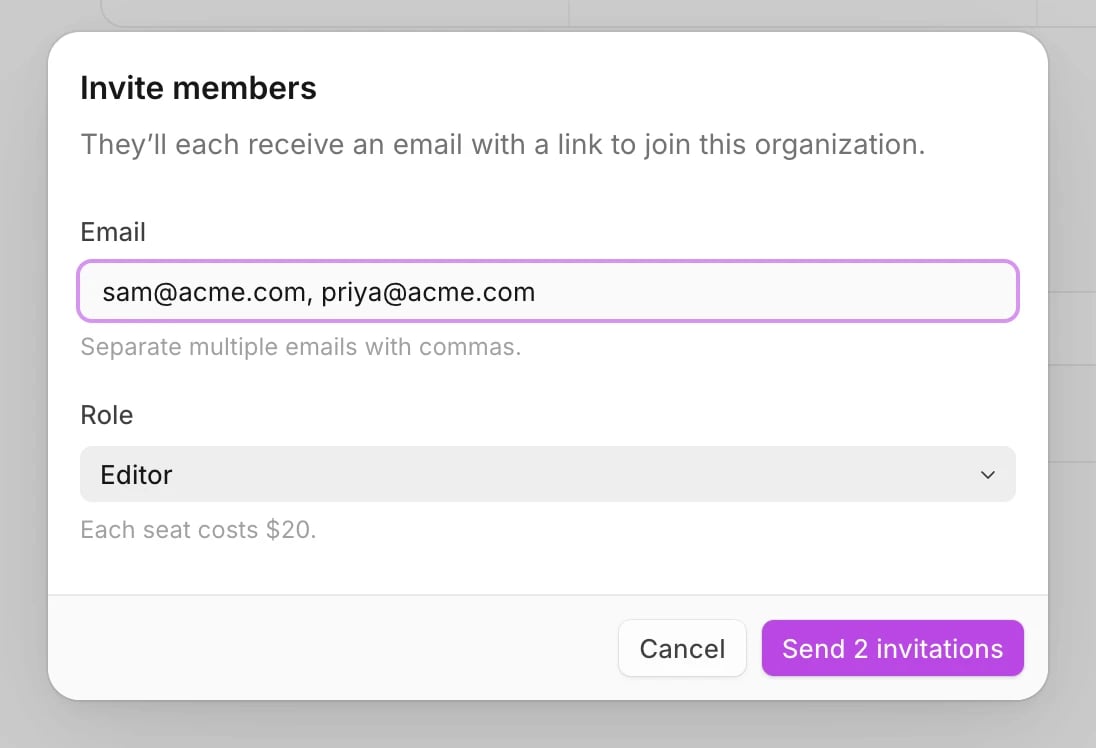
- Under Email, enter one or more email addresses, separated by commas.
- Choose a Role.
- Click Send invitation, or Send 2 invitations and so on for several people.
Resend or cancel an invite
Invites show in Settings › Members as Invitation pending or Invitation expired. Open the ⋯ menu on an invite:- Resend invitation sends a new link. The previous link stops working.
- Cancel invitation makes the link stop working right away.
Accept or decline an invite
- From the email. Click the link and sign in with the email address the invite was sent to. Click Accept invitation to join, or Not now to decide later.
- In Wonder. When you sign in with invites waiting, Wonder shows You have an invitation. Click Join or Decline next to each one, or Maybe later.
Change someone’s role
Owners and admins can change roles. Only the owner can change an admin’s role, and nobody can change the owner’s.- Open Settings › Members.
- Choose a new role from the role menu in the person’s row.
Remove someone
Owners and admins can remove members. Only the owner can remove an admin.- Open Settings › Members.
- Open the ⋯ menu in the person’s row and choose Remove from workspace.
- Click Remove.
What you can’t do yet
- Transfer ownership. A workspace’s owner can’t be changed.
- Leave a workspace. You can’t remove yourself. Ask an owner or admin to remove you.
If something goes wrong
- Admin and Editor are greyed out with a Pro badge. The workspace is on the Free plan. The owner can upgrade, or invite the person as a viewer.
- This workspace is on the free plan. Only the owner can edit. Only the owner can invite people or change members on the Free plan. Ask them to upgrade.
- Invite member is greyed out. Viewers can’t invite people. Ask an owner or admin.
- This invitation is no longer valid. The link expired, was resent or was cancelled. Ask the person who invited you to send a new one.
- This person is already a member of this organization. They’re already in the workspace. Change their role instead.