

Personal and team workspaces
- Your personal workspace is created when you sign up. It shows your name and a Personal tag in the workspace switcher, and its address is your username. It starts on the Free plan. You can’t delete it.
- A team workspace is one you create for your team or are invited to. It has its own name, logo and address, and its own plan and members.
Create a team workspace Pro
Every new team workspace starts on a paid plan.- Open the workspace switcher and choose Create organization. You can also run Create new organization from the command palette (⌘K).
- Enter a Name and click Create organization.
- Choose a plan in Create a new workspace and click Upgrade.
- Pay in the checkout that opens.
Switch workspaces
- Workspace switcher. Click the workspace name with the up and down arrows: at the top left in the browser, and at the top of your files in the desktop app. Choose a workspace from the list; the current one has a checkmark.
- Command palette. Press ⌘K and choose Switch to and the workspace’s name, or Switch to Personal for your personal workspace.
The workspace home and public profile
Each workspace has a profile atapp.wonder.so/ followed by its address, for example app.wonder.so/acme. In the browser, Overview opens it and Files lists the workspace’s files. In the desktop app, you see the files.
The profile shows the workspace’s logo, name and links, an About section, and up to four files under Pinned or Featured. Anyone can open a profile, even without signing in. People outside the workspace only see its public files, and not its members. Click Share profile to copy its link.
The owner can change the profile with Edit profile. Anyone who can edit in the workspace can choose which files it shows with Customize your pins. Your personal workspace’s profile uses the picture and details from your account.
To make a file public, see Share a file.
Change the name, logo and URL
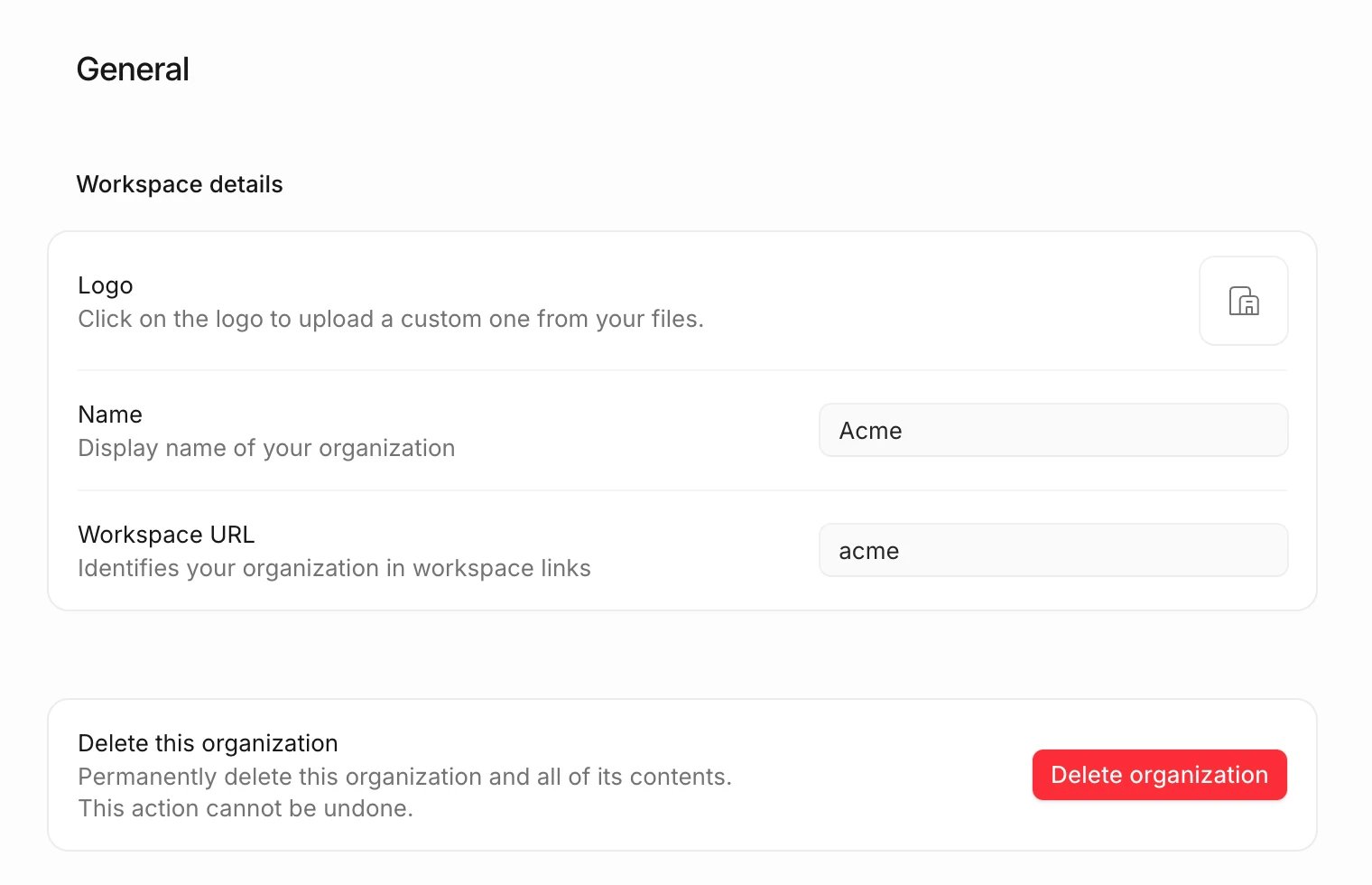
Only the owner can change these. Everyone else sees them greyed out.- Open Settings (⌘,) and choose General under the workspace.
- Change any of:
- Logo: click the logo and choose Change logo to upload a PNG, JPEG, SVG, GIF or WebP image, or drag one onto it. Remove logo is in the same menu.
- Name: the name everyone sees.
- Workspace URL: the address of the workspace. It’s 3 to 39 lowercase letters and numbers, with single hyphens between them. It can’t be a reserved word or an address another workspace or user already has.
Delete a workspace
Only the owner can delete a team workspace. Your personal workspace can’t be deleted.- Open Settings › General.
- Under Delete this organization, click Delete organization.
- Type the workspace’s name and click Delete organization.
When only the owner can edit
When a team workspace is on the Free plan, or its subscription has lapsed, only the owner can edit. Admins and editors can still open every file, but as viewers.- The owner sees This workspace is on the free plan with Upgrade.
- Admins and editors see the same notice, saying only the owner can edit and to ask them to upgrade. In a file, they see This workspace is on the free plan. Only the owner can edit.
If something goes wrong
- The name, logo or URL are greyed out. Only the workspace’s owner can change them.
- That org slug is already taken. Another workspace or user has that address. Pick a different one.
- You can’t edit a file in a team workspace. You’re a viewer, or the workspace isn’t on Pro. See Members and roles.
- Your previous workspace payment is still processing. Wait a moment, then create the workspace again.