

Copy a workspace
ReplaceREPO and WORKSPACE with your own. Conductor adds a symlink next to a workspace when it renames its branch; use the real folder.
1
Clone the repository
In your Terminal, make a clone that belongs to Wonder, and bring your branch into it. This only reads from the workspace.If two workspaces track the same remote branch, the second fetch fails with Both worktrees then push to the same remote branch, so pull one’s commits into the other before you push.
BRANCH is the branch on your remote, so your pull request carries on. Conductor names a workspace’s own branch NAME-v1 when you start it from an existing branch. The block prints the name to pick in Create from. The .context/ line keeps Conductor’s notes out of your changes.Don’t use a folder inside ~/conductor. To bring in another workspace from the same repository, set its WORKSPACE, LOCAL and BRANCH, and run only the git -C "$CLONE" fetch line.If your workspace is on the default branch, such as main, Git refuses, because the new clone has that branch checked out. Bring it in under the workspace’s folder name, which is the name /resume looks for, and pick that name in the next steps. Your work then goes up as a new branch.non-fast-forward. Bring that one in under its own name, and pick that name in Create from:/resume still lists its chats.2
Add it to Wonder
In the sidebar, click Add repository, choose Start from local folder, and pick 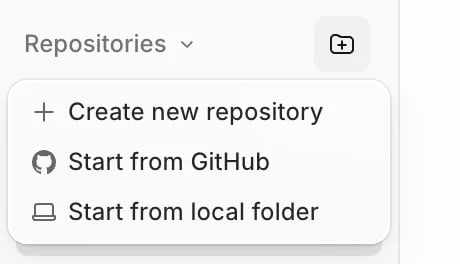
~/code/REPO. If Wonder shows Set up REPO, keep A new worktree and click Start chat; Cancel removes the repository again. Wonder also makes a first worktree, which you can archive.3
Open your branch
Open the repository’s ⋯ menu and choose Create from. Click Branches, then pick the branch the first step printed.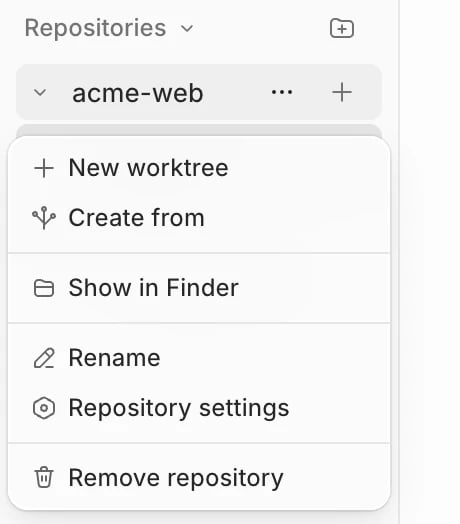
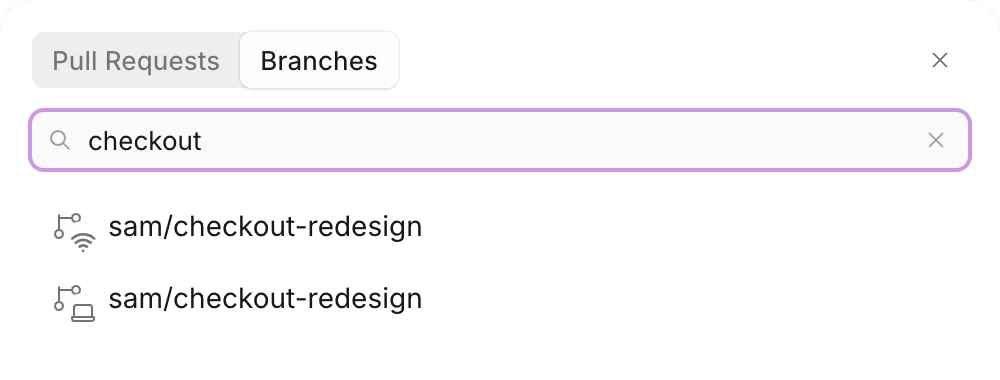
git push fails. A branch you’ve never pushed has only the laptop row, and Wonder’s Push publishes it.4
Copy your unfinished work
Open the new worktree’s terminal and check it’s on your workspace’s commit:If it prints If that prints To check the copy, run this. It should list only
same, go on. If not, the wifi row may have moved a branch that’s behind your remote up to the newest commit, so move it back:HEAD is now at, your branch is behind your remote, so pull before you push. If it prints nothing, stop and contact support.Then copy your work:node_modules and other files you chose not to copy:If /resume misses a chat
If a chat is missing lists when that happens. Find the chat’s ID yourself: it’s the file name without .jsonl, newest first.
Copy your scripts
Wonder reads scripts from the repository’s main folder. Copy an uncommitted.conductor/settings.toml from a workspace to ~/code/REPO/.conductor/, using the newest if your workspaces’ copies differ, and .conductor/settings.local.toml from Conductor’s main folder to the same place. That folder is the first line of git -C ~/conductor/workspaces/REPO/WORKSPACE worktree list. Until you accept the setup script, the repository’s first new worktree shows a notice that it didn’t run, with Open repository settings.
If something goes wrong
fatal: couldn't find remote ref: check the branch name.- Create from lists your branch once, ending in
-v1: fetch it again under the remote branch’s name, as the first step shows. refusing to fetch into branch 'refs/heads/main' checked out: your workspace is on the default branch. Fetch it under a new name, as the first step shows.non-fast-forwardwhen you fetch: two workspaces track the same remote branch. Bring the second in under its own name, as the first step shows.git pushsays the branch has no upstream: you picked the laptop row for a branch that’s on your remote. In the worktree’s terminal, rungit branch --set-upstream-to=origin/BRANCH. Wonder then follows that branch, as if you’d picked the wifi row.- New worktrees won’t create: an entry in Files to copy matches nothing. Fix or remove it in Repository settings.
- “This branch is already checked out”: you added Conductor’s own clone. Add the clone from the first step instead.