

Ask your agent to build a design
- Open a chat in the worktree of the repository you want to change.
- Select the frames or layers you want to build on the canvas.
- Press ⌘ L, or click the button at the selection’s top-right corner. Its tooltip says Add to chat. Each frame or layer gets a chip in your message.
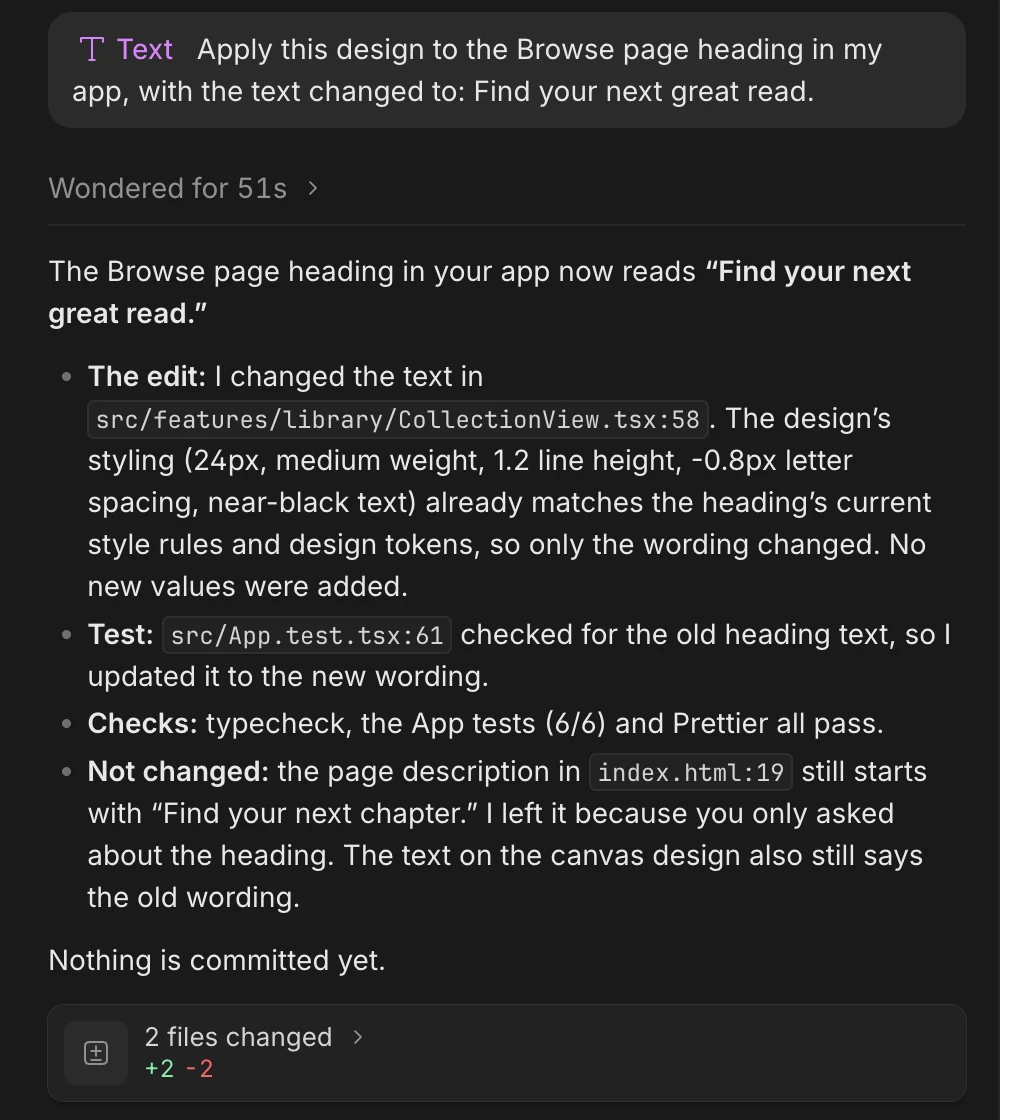
- Say what to build and where, for example “Apply this design to the book page”, and send.
- It reuses the components your app already has. Where the design differs from one, it adds an option to that component rather than making a copy, and tells you when it had to make a new one.
- It uses your code’s own colors, spacing, fonts and icons instead of the design’s raw values.
- It follows the way your project already organizes its files and data.
Check the result in the Preview
- Start the Preview of the chat’s worktree. See Preview your running app.
- Put the Preview next to your design on the canvas and open the same page in both.
- If something doesn’t match, tell your agent what’s different. Add the design to the message again so it compares against the right frame.
Fix details in your running app
To point at what’s wrong in the app itself rather than in the design, use Inspect in the Preview:- Select the Preview, then click Inspect in the bar at the bottom of the canvas, or press ⌘ ⇧ I.
- Click the element that’s off. Hold ⌥ over it to check its size and spacing.
- Click Add to chat next to it, or press ⌘ L.
- Say what should change, for example “match the padding of the card in my design”, and send.
Use a coding agent outside Wonder
You can hand a design to any coding agent that has the Wonder MCP, such as Cursor, Claude Code in your terminal or Codex.- Select the frames or layers on the canvas.
- Right-click and choose Copy as > Copy prompt, or press ⌘ ⇧ ⌥ C. You can also find Copy prompt in ⌘ K. Wonder says Prompt copied to clipboard.
- Paste the prompt into your coding agent and send it.
What your agent does without asking
Building a design changes files in the chat’s worktree. Your agent creates a branch, commits, pushes or opens a pull request only when you ask it to, and it never force-pushes or changes commits that are already on GitHub unless you ask. To review what changed and keep it, see Files, changes and terminal and Commit, push and pull requests.If something goes wrong
- “Select a chat first”. No chat is open to add the design to. Open or start a chat in the repository’s worktree, then press ⌘ L again.
- There’s no Add to chat button. Adding to chat needs the desktop app with Claude Code or Codex signed in, and edit access to the file. See Add to chat from the canvas.
- “Failed to copy prompt to clipboard”. Wonder couldn’t write to your clipboard. Click the canvas and copy the prompt again.
- Copy prompt is missing. It isn’t offered for a prototype. Select the frames or layers themselves.
- Your outside agent can’t read the design. It doesn’t have the Wonder MCP, or isn’t signed in to it. See Install and Wonder MCP troubleshooting.
- The app doesn’t match the design. Add the design again, or use Inspect to point at the part that’s off, and say exactly what differs.