

Use the Ship button
The Ship button sits at the top of the side panel, on the right. When the panel is hidden, it moves to the chat’s header. Its label is always the next step for this worktree, and the arrow next to it (More pull request steps) lists the other steps that apply now, plus Copy branch name.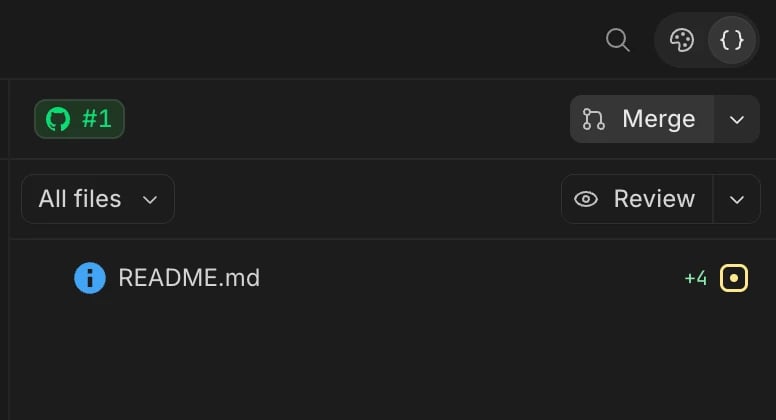
- Your agent does it. Create PR, Create draft PR, Commit and push, Resolve, Resolve conflicts, Fix checks, Address review and Merge send a message to the worktree’s chat. The chat shows a chip naming the step, such as Open a pull request, and your agent does the work there. If the worktree has no chat open, Wonder starts one.
- Wonder does it. Publish to GitHub, Pull, Push, Ready for review, Update branch, Reopen and Archive run directly, with nothing sent to the chat.
Publish a repository to GitHub
A repository that isn’t on GitHub yet shows Publish to GitHub.- Click Publish to GitHub. If Wonder isn’t signed in to GitHub, it asks you to sign in first.
- Choose the Account or organization, the Repository name, and Private or Public. New repositories are Private unless you change it.
- Click Publish.
Open a pull request
- Click Create PR. To open it as a draft, choose Create draft PR from the arrow menu.
- Your agent reviews the changes against the base branch, commits what isn’t committed with clear messages, pushes the branch and opens the pull request. It writes the title and description, following your repository’s own conventions when it has them, and shares the link.
Commit and push more changes
Once the pull request is open, new changes show as Commit and push, with how many files are uncommitted. Click it, and your agent reviews them, commits them and pushes the branch. It tells you instead of committing anything that shouldn’t be committed. To commit at other times, ask your agent in the chat. Wonder has no commit form of its own. The button also keeps the branch in step with GitHub:- Push pushes commits that aren’t on GitHub yet.
- Pull brings in commits that are on GitHub but not here. It only fast-forwards, so it never merges or rewrites anything.
- Resolve shows when both sides have new commits. Your agent brings them together without force-pushing.
Follow checks and reviews
The status next to the pull request number shows what matters most right now, such as Draft, Merge conflicts, 2 checks failing, 3 checks running, Changes requested, Approved or Merged. Click it to open the pull request on GitHub. For the details, choose Pull request in the side panel’s menu. It shows the pull request’s state, author, base branch and description. While the pull request is open, it also shows the Checks, with Failed, Running, Passed or Skipped for each, and the Reviews, with each reviewer’s state. Click a check to open its details on GitHub. To always open the side panel on the pull request, turn on Open the side panel on the pull request in Settings > Preferences > Advanced. Wonder keeps the status up to date on its own while the window is open.Fix checks, conflicts and review comments
When something blocks the pull request, the Ship button offers the fix:- Fix checks. Your agent reads the failing checks and their logs, fixes what caused them, runs them locally, then commits and pushes. If a failure isn’t caused by this branch, it tells you instead.
- Resolve conflicts. Your agent merges the base branch in, or rebases if your repository prefers it, resolves each conflict and pushes. It tells you which files conflicted and how it resolved them.
- Address review. Shows when a reviewer asked for changes. Your agent reads the review comments, addresses each one, commits and pushes, then sums up what it did for each comment.
- Update branch. Shows when the base branch has commits this branch lacks. Wonder updates the branch on GitHub.
Stacked pull requests
When a pull request is based on another open pull request, or others are based on it, its status shows the size of the stack. Click it to see the stack: Based on, This pull request and Stacked on this. Choose one to open it. Wonder shows stacks but doesn’t create them. To stack a pull request, ask your agent to base its branch on another pull request’s branch.Merge and archive
Merge shows only when GitHub reports nothing in the way. Until then the button says View PR, and hovering it says what’s still needed.- Click Merge. Your agent checks that the checks passed, the required reviews are in, nothing conflicts and nothing is unpushed. It stops and tells you if something does.
- It merges the way your repository does, with a squash, a merge commit or a rebase, and tells you whether the branch was deleted.
- Once merged, the button says Archive. Click it to archive the worktree.
Choose the commit author and agent credit
In Settings > Agents > Code attribution:- Commit author is the name and email your commits use. Click Change… to set your own, or Use automatic. Automatically, Wonder uses your GitHub account’s no-reply address once you’ve signed in to GitHub, or your Wonder account otherwise. A name and email in your own global Git settings always win.
- Credit the agent on commits and pull requests adds Claude’s credit to commits and pull requests. It’s on by default and shows when Claude Code is signed in. Codex follows your ChatGPT setting instead.
Sign in to GitHub
Wonder uses the GitHub CLI’s own sign-in, and never holds a GitHub token itself. When a step needs GitHub and Wonder isn’t signed in, the button says Sign in to GitHub.- Click Sign in to GitHub. Wonder shows a one-time code and opens GitHub in your browser.
- Enter the code on that page and approve GitHub CLI. The window finishes on its own.
If something goes wrong
- “Wonder isn’t signed in to GitHub, or its sign-in expired”. Click Sign in to GitHub and try again.
- “The remote has commits you don’t”. Click Pull, then push again.
- “The repository’s pre-push checks failed”. Fix what they report, or ask your agent to, then push again.
- “GitHub declined this push because it breaks a rule on this repository”. A branch protection rule, ruleset or secret scanning blocked it. Follow the rule, or ask a repository admin to change it.
- “GitHub blocked this push because its newest commit shows an email address your GitHub account keeps private”. Click Ask the agent to switch the commit to your GitHub no-reply address, then push again.
- “GitHub declined this push because it adds or changes a GitHub Actions workflow”. Sign in to GitHub again to give Wonder access to workflows, then push again.
- “A repository with this name already exists on that account”. Pick another Repository name.
- “This repo’s origin is not on GitHub, so a pull request can’t be opened from Wonder”. The Ship button works with GitHub only. Open the pull request on your code host instead.
- “Your organization requires single sign-on for GitHub”. Sign in to GitHub again and authorize the organization.