

Add a selection to your message
- Select one or more frames or layers on the canvas.
- Add them in any of these ways:
- Press ⌘ L. The Keyboard shortcuts list calls it Add selection to chat.
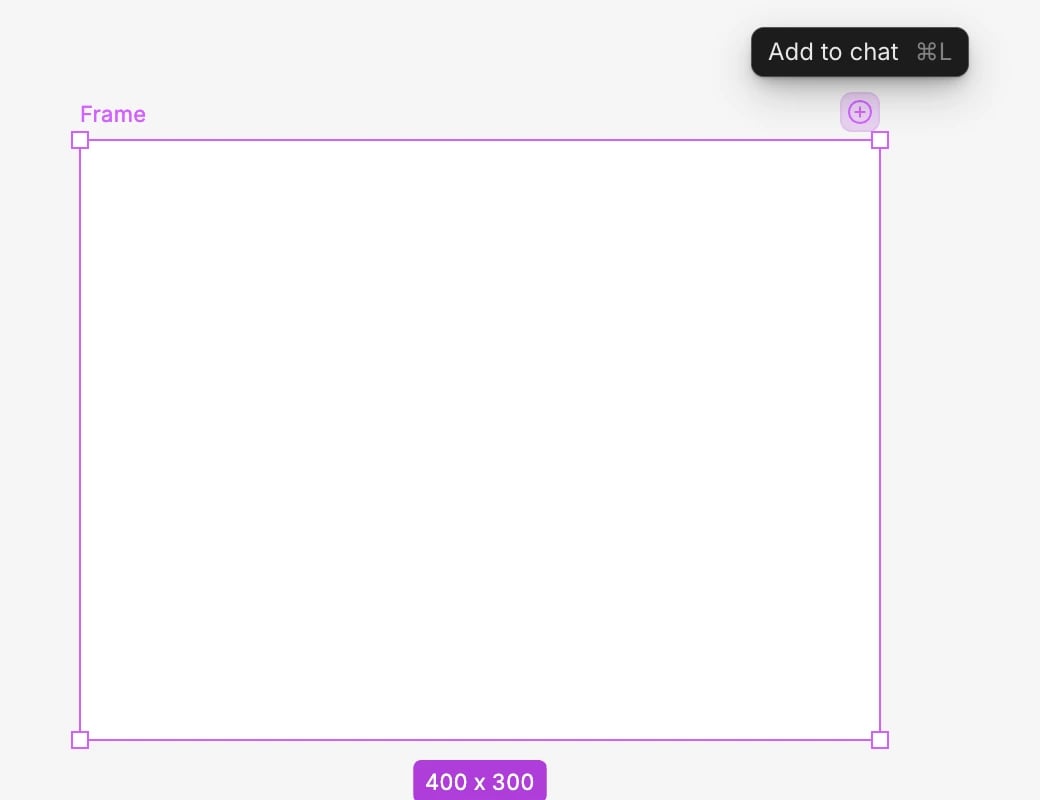
- Click the button at the top-right corner of the selection. Its tooltip says Add to chat. If it opens a menu instead, choose Add to chat there.
- Right-click the selection and choose Add context.
- In the chat, say what should change and send.
Remove what you added
- Right-click the selection and choose Remove context. It replaces Add context once everything you selected is in the message.
- Click the button at the selection’s top-right corner. Once the selection is in the message, its tooltip says Remove from chat.
- Hover a chip in the message and click the × on it.
Attach what you select automatically
When Attach selection to chat is on in Settings > Preferences > Advanced (it is by default), you don’t need to add anything. Your message shows a Selection chip that follows whatever you select on the canvas, such as Selection · 3 for three layers. When you send, the layers in it go with your message.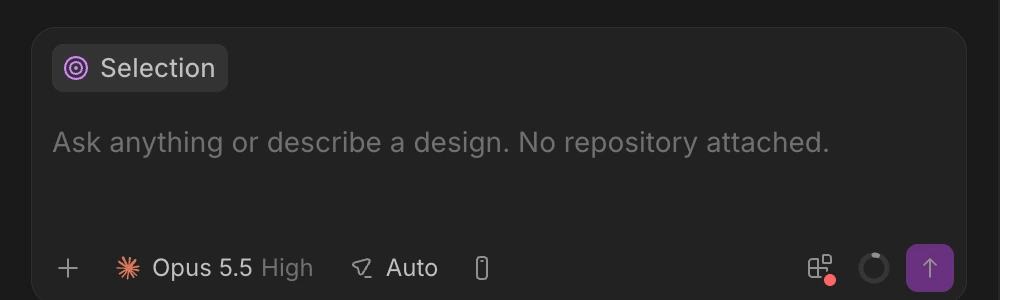
- The chip changes as your selection changes, so it never piles up older selections.
- Click the chip to see the Selected layers list. Removing a layer there also deselects it on the canvas.
- Click the × on the chip to leave the current selection out. Selecting something else brings the chip back.
- The chip shows only while both the canvas and the chat are visible, and not for more than 200 selected layers.
Add an element of your running app
In a Preview of your app, turn on Inspect (⌘ ⇧ I), click an element, then click Add to chat next to it or press ⌘ L. The element goes to a chat in the worktree the Preview runs from, with its CSS, the page it’s on and, when Wonder can tell, the file and line in your code it comes from. With Attach selection to chat on, the elements you pick join the next message in that worktree’s chat by themselves, in a Selection chip. See Inspect your running app for the details.In the tour
The tour’s Send it to your agent step asks you to attach your frame with ⌘ L or the button at its top-right corner. The step moves on once the frame has its own chip in the message. The Selection chip from Attach selection to chat doesn’t count, so add the frame even when it’s already selected. Click Skip for now to leave the step out.If something goes wrong
- “Select a chat first”. No chat is open to attach to. Open or start a chat, then add the selection again.
- “Those elements are still being saved”. You added layers you just made. Wait a moment and try again.
- There’s no Add context or Add to chat. You can’t edit this file, or no agent chat can run here. Adding to chat needs the desktop app with Claude Code or Codex signed in, and edit access to the file.
- The Selection chip doesn’t show. Check that Attach selection to chat is on, that the canvas and chat are both visible, and that you’ve selected 200 layers or fewer.
- An element of your running app won’t add. See If something goes wrong in Inspect your running app.