

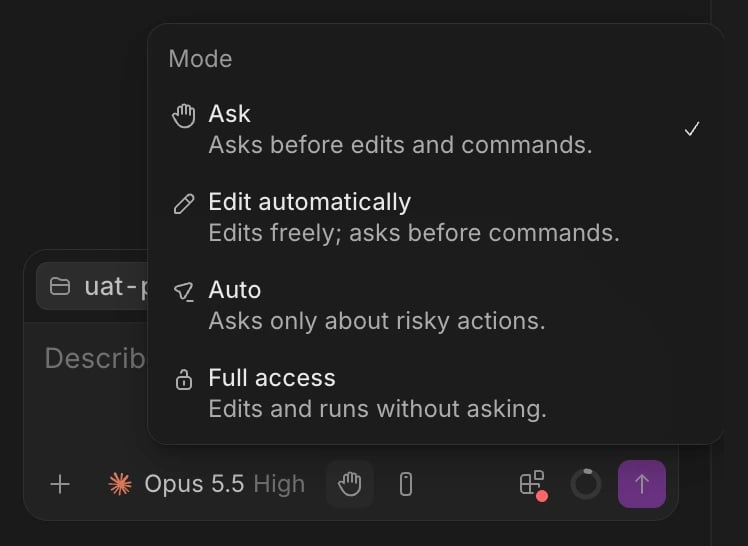
The four modes
In every mode, the agent’s questions to you still wait for your answer. Auto isn’t available for every model; the menu says Not available for this chat’s model when it isn’t.
Choose a chat’s mode
- In the chat’s message box, click the mode next to the model. It shows the chat’s mode, such as Auto, or only its icon when the chat is narrow. Hover it to see the mode’s name.
- Pick a mode.
Choose the mode new chats start in
Open Settings > Agents > Mode for new chats.- Default is the mode new chats start in. It’s Auto until you change it.
- Each repository has its own row. Follow the default keeps it on Default. Pick Ask, Edit automatically or Auto to give the repository a mode of its own.
Approve or deny an action
When the agent needs your go-ahead, the chat shows a card such as Run this command?, Change this file? or Reach this site?.- Click Allow, or press ⌘ ↵. When there are other ways to allow, the main button says Allow once, and the menu next to it offers the rest:
- A rule so the agent stops asking, for example Don’t ask again for “npm test” commands in this repository. Some rules last only for this chat, such as Allow for this chat.
- Allow and switch to Auto or Allow and switch to Full access, which also changes the chat’s mode.
- Click Deny, or press Esc. The menu next to it offers Deny with a note, to tell the agent what to do instead, and for a command, Edit the command instead, to change it before it runs.
Review what’s allowed without asking
Settings > Agents > Allowed without asking lists the rules saved when you chose “don’t ask again”, in Wonder, Claude Code or Codex.- Claude Code rules are listed for each repository, and Codex rules under Every repository.
- Click Open in editor to see the file a rule is saved in.
- To remove a rule, click Remove next to it, then Remove rule. The agent asks again before doing what the rule allowed, in Wonder and outside it.
Let agents create files, folders and pages
Let agents create files, folders and pages, in Settings > Agents > Access, is on by default: agents create the Wonder files, folders and pages a task or a Preview needs, instead of asking. Turn it off and agents can’t create them; they ask you to. The change applies when a chat’s agent next starts.Chats that worked on a fork’s pull request
Anyone on GitHub can write a fork’s code, so a chat that worked on a pull request from a fork, or took in text from such a chat, runs contained to keep your computer and settings safe. The chat says This chat now runs contained and shows a Contained chip in its message box. A contained chat:- Can’t use Full access, and asks before acting.
- Changes files only in its own folders, reaches only listed sites and asks you before anything else. Where Wonder can’t sandbox the agent, such as on Windows or when your own agent settings loosen the sandbox, it asks before each command and before changing a file outside its folders instead.
- Asks every time and never remembers your answer, so its approval cards offer no “don’t ask again” choices.
If something goes wrong
- The chat asks even though its mode shouldn’t. The Mode menu says why, for example The agent’s own settings don’t allow Full access, so this chat asks before acting. or The agent isn’t running Auto in this chat, so it asks before acting. Change the agent’s own settings or pick a model that offers Auto.
- A mode is greyed out. Not in a chat that has worked in a fork. means the chat is contained. Not while this chat’s worktree or repository is removed. means the chat’s folder is gone; it can only use Ask.
- “Couldn’t change the chat’s mode. Try again.” Pick the mode again.
- “Wonder can’t read this file as rules.” The rules file has an error. Click Open in editor to fix it.