

See what a chat works with
Works with appears at the top of the message box once the chat works with something. Newest items come first. When they don’t all fit, click +N at the end of the row to see the full Works with list.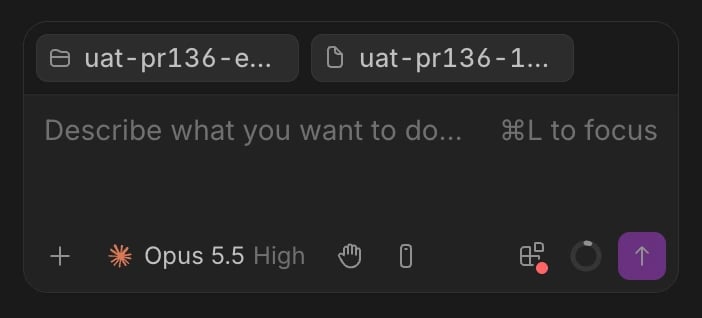
- Hover a folder to see Linked folder, or a chat to see Wonder’s summary of where it left off once Wonder has made one.
- Click a file to open it, or a chat to go to it.
- A badge that’s dimmed, struck through and marked Unavailable points at a folder or worktree that no longer exists, or a chat that was archived or deleted. Remove it.
Add a Wonder file
- In the message box, click + and choose Add file, or type
/add-file. - Pick a file. The list shows the newest files from every organization you’re in. To add a file from a link, paste its Wonder link after
/add-file.
Add a folder
- In the message box, click + and choose Add folder, or type
/add-dir. - In the folder picker, choose the folder and click Add folder.
Link another chat or worktree
- In the message box, click + and choose Link a chat or worktree.
- Pick a worktree from its repository’s list, or a chat under Chats. To find one that isn’t listed, choose Search chats and worktrees. For a new worktree of this repository, choose New worktree.
- A chat: its conversation, never its files. It goes with your next message, and again whenever that chat has something new, until you remove the link.
- A worktree: its files, as an extra folder the agent can read and change, as far as the chat’s mode allows.
Read-only and editable Wonder files
A Wonder file from an organization you’re a member of is editable: the chat can read and change it. A public file of another organization is read-only: it shows Read-only in the file list and Public in Works with, and Wonder tells your agent it can only read it. There’s no switch for this. It follows your membership, so to let a chat change the file, ask to join the organization it belongs to.Remove something
- Hover the badge in Works with, or open +N.
- Click the × that appears on it.
If something goes wrong
- “That folder can’t be added to a chat.” Choose a folder other than the disk root, your home folder itself, or Wonder’s own data.
- There’s no Add folder or
/add-dir. The chat is a quick chat, or its agent can’t work in extra folders. For Codex, update the desktop app. - “This worktree already has 50 files, as many as Wonder keeps.” Remove a file from Works with to make room.
- “You can’t open that file.” You don’t have access to it. Ask its owner for access, or check the link.
- “That link doesn’t open a Wonder file.” Paste a link to a Wonder file or one of its pages.
- “File left out of this message”. The file was deleted, or you can no longer open it.