

See the tools a chat can use
Click Tools in the message box: its icon is next to the context ring. The list starts with Wonder, then every server the agent has loaded. Hover a server to see how many tools it has. A red dot on Tools means a server needs you, for example to sign in.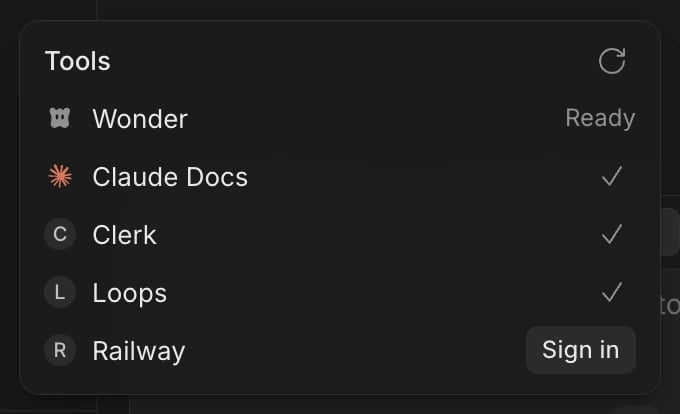
Until the agent starts, the list says The list fills in when the agent starts. When two servers share a name, each shows where it comes from: claude.ai, ChatGPT, Repository, Plugin or Wonder.
Where the list comes from
- Wonder. The canvas tools your agent uses to read and design in Wonder. Every chat has them, and they can’t be removed. See Wonder MCP tools.
- Your agents’ own settings on this computer. The MCP servers in your Claude Code or Codex settings, the same ones the agent uses outside Wonder. Settings > Agents > Tools lists them for each signed-in agent.
- The repository. Servers the repository sets up for Claude Code (its
.mcp.json) or Codex (its.codex/config.toml). - Your accounts. Your claude.ai connectors in Claude chats and your ChatGPT apps in Codex chats. Turn them on or off with Claude connectors and ChatGPT apps in Codex chats in Settings > Agents > Access. See Agent and chat preferences.
- Connections. Figma and Linear, when you’ve connected them in Settings > Connections, show with the source Wonder.
Add a tool
- Open Settings > Agents > Tools and click Add tool in the agent’s group.
- Give it a Name, such as
linear. - Under Runs, choose Remote URL and paste the server’s address, or Local command and enter the command that starts it.
- Click Add tool.
wonder are kept for Wonder’s own tools.
Remove a tool
- Click the trash icon next to the server in Settings > Agents > Tools. For a server that’s failing, you can also click its warning icon in the chat’s Tools list and choose Remove.
- In Remove this tool?, click Remove tool.
Sign in to a tool
- Click Tools and find the server with a Sign in button.
- Click Sign in. Your browser opens; finish signing in there.
/mcp in Claude Code, or codex mcp login in a terminal.
If something goes wrong
- A tool you expect isn’t in the list. Click the refresh button in Tools. It reads the list again and reconnects every server that failed or needs sign-in, which picks up changes made in your agent’s settings. A server you’ve just added loads in new chats only, so start a new chat.
- “Couldn’t connect.” The server can’t be reached. Click Retry, or click the warning icon and choose Fix with agent to have the chat’s agent look into it.
- “Token rejected. Replace it where this tool is set up.” The server’s token has expired or is wrong. Update it in the settings that set up the server. For a repository server in a Claude chat, click Open .mcp.json.
- “Its setup has an error.” or “Its program didn’t start.” Click the warning icon and choose Fix with agent, or correct the server’s settings yourself.
- “Needs …. Add it to your shell profile, then try again.” The server needs an environment variable Wonder can’t see. Add it to your shell profile and try again.
- “Canvas tools are off”. Wonder couldn’t give this chat access to your canvas. Check that you’re signed in to Wonder, then send your message again.
- “Wonder can’t read Claude Code’s settings.” or “Wonder can’t read Codex’s settings.” The agent’s settings file has an error. Fix it in your editor, then click Check again (the refresh button) in Settings > Agents > Tools.