

Get notified when a chat finishes
In Settings > Preferences > Notifications:
Your own sound must be an MP3 of 2 MB or less that plays for 10 seconds or less. Once you’ve added one, it’s listed as Your MP3.
Change how chats show in the app
In Settings > Preferences > Advanced:
Attach selection to chat is on by default. The other three start on if you picked Developer for “What best describes you?” when you set up the desktop app, and off otherwise.
Choose what your agents can use
Settings > Agents > Access has a switch for each extra your agents can use. Changes apply when a chat’s agent next starts. Claude rows show once you’ve signed in to Claude Code, and Codex rows once you’ve signed in to Codex.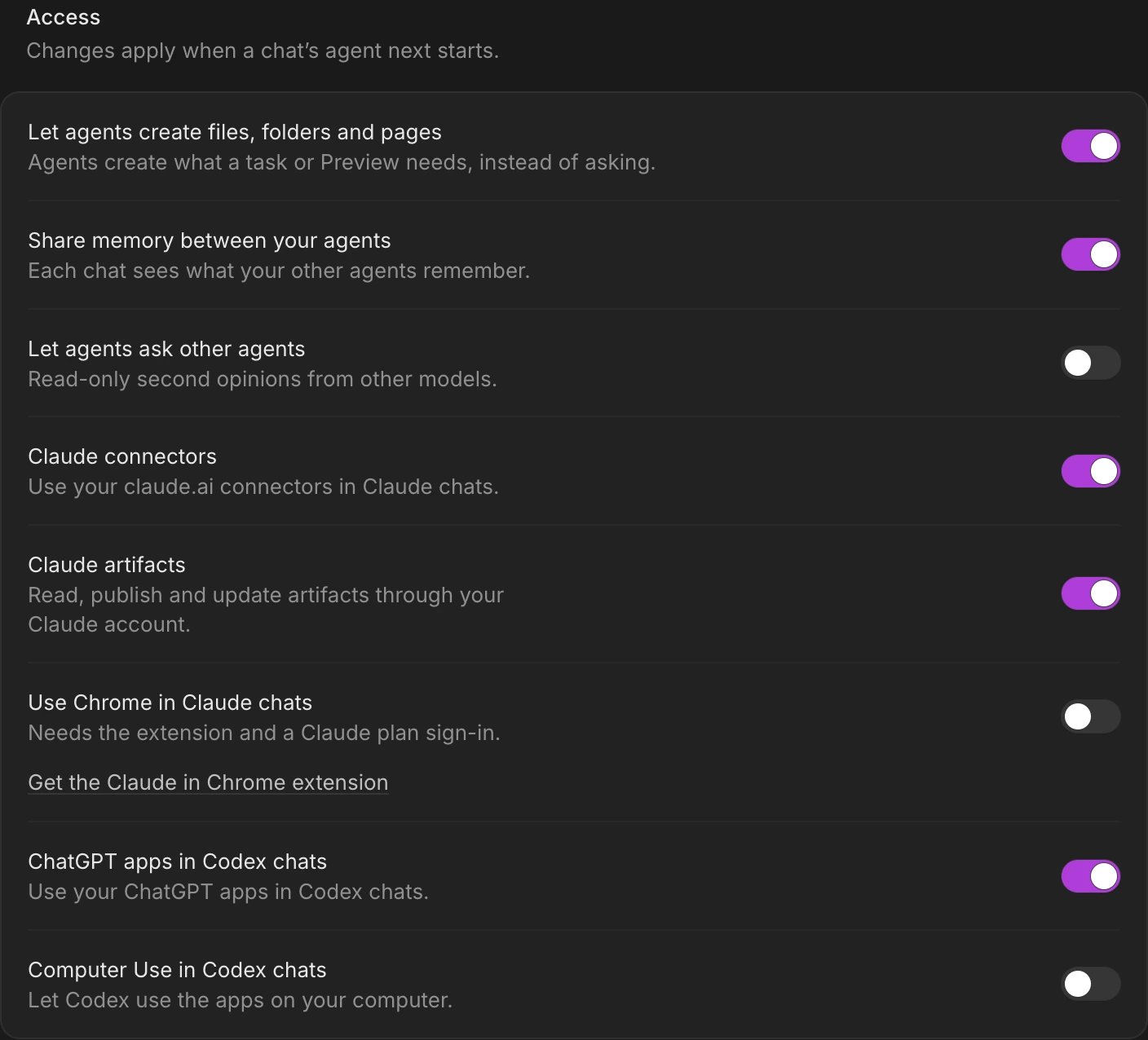
Use Chrome in Claude chats
- Click Get the Claude in Chrome extension under the setting and install it in Chrome.
- Make sure Claude Code is signed in with your Claude plan, not an API key or a cloud provider.
- Turn on Use Chrome in Claude chats, then start a new chat.
Choose what a message sent mid-task does
Follow-up messages, in Settings > Agents > Chat, decides what happens when you send a message while the agent is still working:- Queue (the default): your message waits until the agent is done, then goes next.
- Steer: your message joins the current work, so the agent takes it into account straight away.
Expand agent work by default
Turn on Expand agent work by default, in Settings > Agents > Chat, to see an agent’s thinking and tool calls unfolded instead of collapsed. It’s off by default, and applies at once to every fold you haven’t opened or closed yourself.Choose how your agent answers
In Settings > Agents > Response preferences:- Claude response style: the style Claude chats answer in. It applies from the next message.
- Use my Claude Code setting (the default) keeps whatever your Claude Code settings choose.
- Claude Code’s styles: Default, Proactive (starts work without routine questions), Concise (results first, without narration), Explanatory (adds short Insight notes on its choices) and Learning (leaves small pieces for you to write).
- Under Your styles, any output style of your own that a Claude chat has listed.
- Codex personality: Default keeps Codex’s own personality, and None turns personality off. It applies to new chats.
If something goes wrong
- A setting isn’t in Settings > Agents. Rows for Claude Code or Codex show only while that agent is signed in. Sign in under Provider accounts at the top of Settings > Agents.
- “Chrome needs a Claude plan sign-in, and this computer’s Claude login uses an API key or a cloud provider.” Claude in Chrome works only with a Claude plan. Sign in to Claude Code with your Claude account, then try again.
- A changed switch doesn’t take effect in an open chat. Access settings apply when the chat’s agent next starts. Start a new chat to use them straight away.
- “That file isn’t an MP3”, “That MP3 is too big” or “That sound is too long”. Choose an MP3 of 2 MB or less that plays for 10 seconds or less.