

Choose a chat’s model and effort
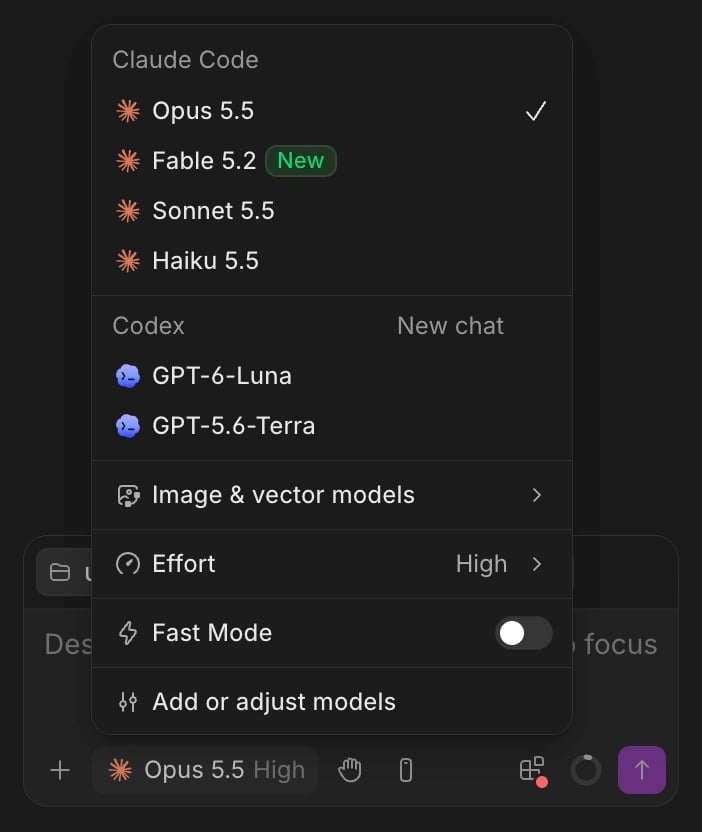
- Click the model in the chat’s message box. It shows the chat’s model and effort.
- Pick a model under Claude Code or Codex. The models listed come from the agent and the account you’re signed in with. Once a chat has messages, the other agent’s models are marked New chat: picking one starts a new chat on that agent.
- Under Effort, pick how much the model reasons: Low, Medium, High, Extra High or Max. Some Codex models also offer Ultra, and Claude Code offers Ultracode where your account allows it. New chats start on High.
/effort.
Use Fast Mode
Turn on Fast Mode in the same menu for faster replies from the same model. It runs on your agent provider’s faster lane, which costs more. Claude Code offers it on every model, and Codex on the models that support it. A lightning bolt next to the model shows it’s on.Choose which account a chat uses Pro
When you’ve signed in to an agent with more than one account, the menu lists each account under Anthropic or OpenAI, with its models in a submenu. Each account shows by its email, next to its claude.ai organization or ChatGPT plan. Pick a model under the account you want the chat to use. Free keeps one Claude account and one Codex account signed in. To connect more, you need an owner, admin or editor seat in any Pro workspace; see Plans and limits. Then go to Settings > Agents and sign in to Claude Code or Codex again with another account.Set the models new chats start on
Open Settings > Default Models, or click Add or adjust models at the bottom of the model menu.- Start new chats on picks the agent a new chat uses: First model in your picker, Claude Code or Codex. If that agent isn’t signed in, the chat asks you to sign in.
- Claude Code default and Codex default pick the model new chats on each agent start on.
- Your model picker is the list of models in the chat’s menu. Drag a model to reorder it, set its effort, Fast Mode and reviewer, remove it, or click Add to your picker to add another.
Have another model review the work
- In the chat’s changes panel, click Review. Its tooltip names the reviewer, such as Review with Sonnet.
- To ask a different model this time, open the menu next to it and pick one under Review with.
Let agents ask other agents
Turn on Let agents ask other agents, in Settings > Agents > Access, for read-only second opinions from other models. Your agent can then ask any model in your picker, or the chat’s reviewer, for example when you write “ask Codex for a second opinion on this plan”. The other model reads but changes nothing. It’s off by default, and the change applies when a chat’s agent next starts.Watch your plan and context usage
The ring on the right of the message box fills as the chat uses its context window: the conversation, files and tools the model keeps in mind. It turns amber as the chat nears the point where the agent compacts the conversation, and red past it. Hover it for the numbers, such as Context · 142.0K / 1.0M tokens (14%). A dot on the ring means a plan limit is almost or already reached. Click the ring to see Claude usage or Codex usage:- Your plan’s limits for the account the chat uses, each with when it resets.
- Weekly AI layers, your Wonder plan’s allowance. See Plans and limits.
- Context window, with what’s using it.
If something goes wrong
- “Not available on this account”. Your plan doesn’t include that model or effort. Pick another, or switch to an account that has it.
- “A plan limit is reached”. Wait until the time the usage popover gives, switch the chat to another account, or pick a model from your other agent.
- “Billed per token, no plan limits”. The account signed in with an API key, so it has no plan limits to show.
- “There are no changes to review.” or “This worktree has no commit to review against yet.” Review needs changes in the worktree and a commit to compare them with.
- “Wait for the agent to finish its turn.” Review starts once the agent stops working.
- There’s no Let agents ask other agents. Update the desktop app.