

Copy a layer
Select a layer, right-click it and open Copy as:
On Windows, use Ctrl for ⌘ and Alt for ⌥.
Copy as code and Copy as PNG work on one layer at a time. Copy prompt works on several.
You can also run each of these from the command palette (⌘K).
Copy a prompt for your coding agent
Copy prompt gives a coding agent such as Claude Code or Codex what it needs to build your selection in your code:- a reference to each selected layer, which the agent opens through Wonder MCP;
- the Wonder MCP address, and a link to its docs if the agent isn’t connected yet;
- a snapshot of the layers’ code.
Copy a link to a layer
Select one layer, right-click it and choose Copy link to selection. The link opens the file on that page, with the layer selected and in view, for anyone who can open the file.Export layers
The Export section sits at the bottom of the Properties panel whenever something is selected.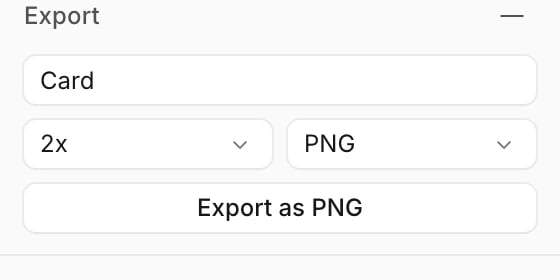
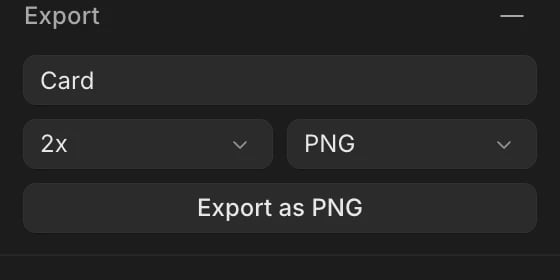
- Select one or more layers.
- In Export, click +.
- Pick a format and a size.
- Click Export as PNG (the button names the format you picked).
export.zip.
In the desktop app, and in browsers that support it, Wonder asks where to save the file and remembers the folder for next time. Otherwise the file downloads.
Formats and sizes
PNG at 2x is the default. Each export uses one format and size; to get another, change them and export again.
Export as code
Choose Code to save the selection as a.tsx file:
- Tailwind writes React with Tailwind classes, the same code as Copy as code.
- CSS writes React with inline styles.
Export from the command palette
Press ⌘K and run Export as PNG or Export as SVG to save the selection without opening the Export section. Export as SVG skips layers that aren’t SVGs.What viewers can copy and export
If you can only view a file, you can still:- copy layers as code, as a PNG or as a prompt, and copy their styles and a link to them;
- export from the Export section and the command palette.