

Create a prototype
- Select the frames to build from. Several frames are read as the states or screens of one thing, such as a menu drawn closed and open.
- Move your pointer near the top-right corner of the selection, click the Wonder button that appears there (Wonder actions) and choose Create prototype.
- In Describe how it should work…, say what should happen, such as “the plan cards switch between monthly and yearly”. You can leave it empty.
- Under Send to, pick the chat to send it to, or New chat, then click Create prototype or press Enter.
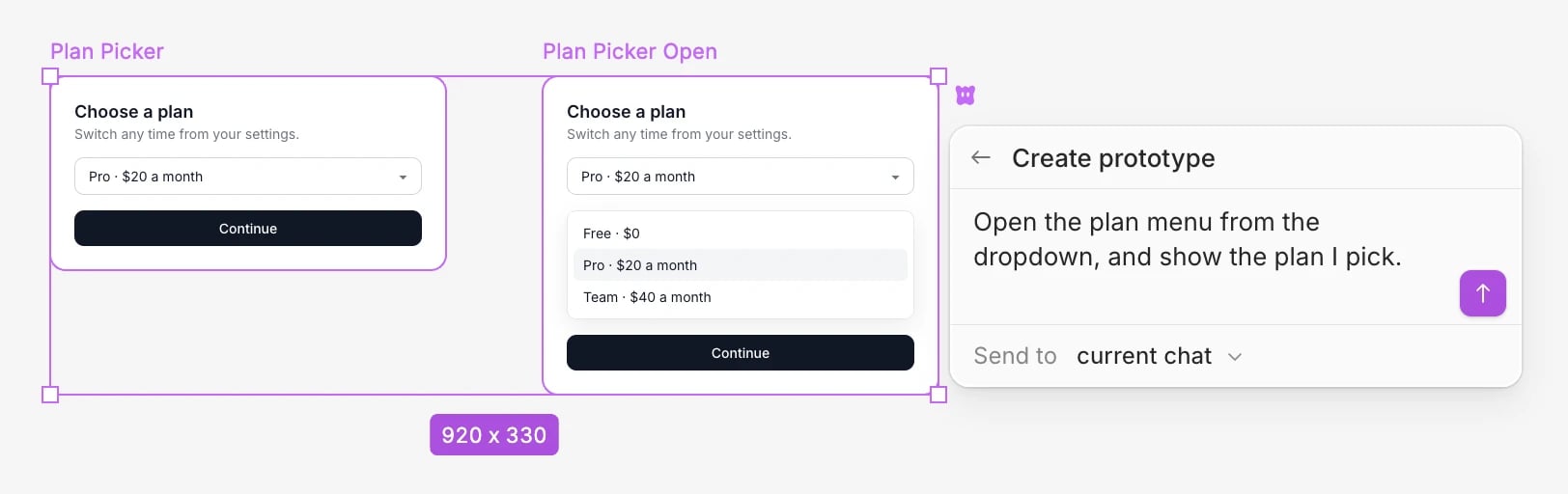
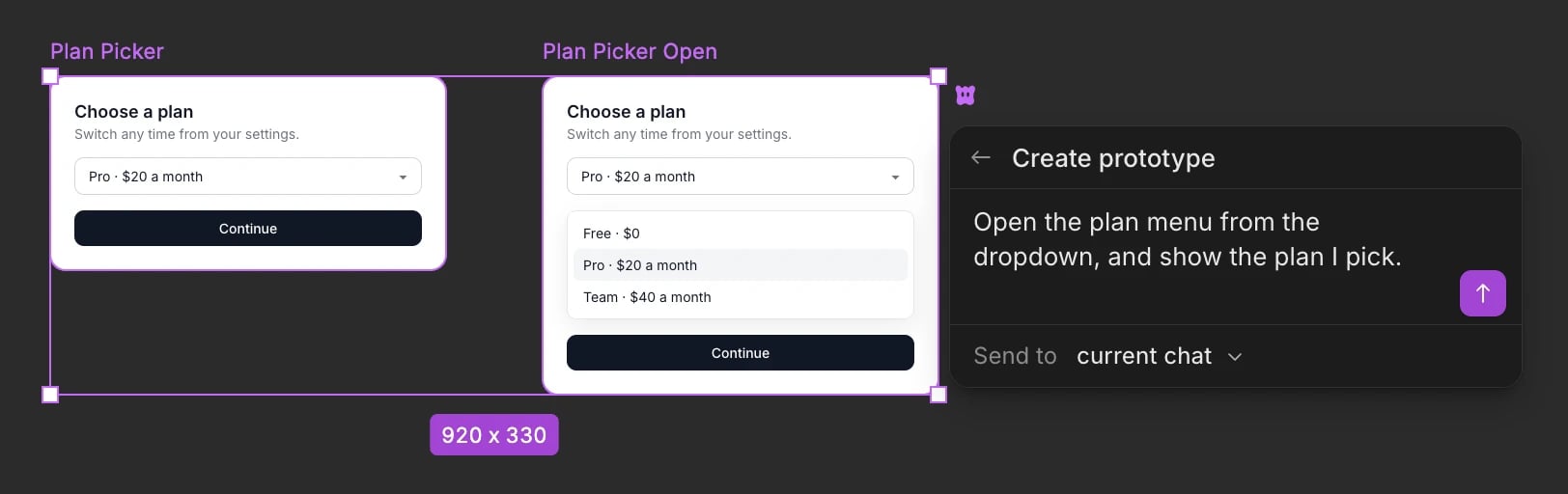
Play a prototype
Select a prototype to play it. Click and type inside it as you would in the app: it responds right where it is on the canvas. Playing works in the browser too. Select something else, or press Esc, and the prototype pauses where it was. It keeps showing that screen until you select it again. Only one prototype plays at a time: the one you’ve selected. You can also click the play button at the right of the prototype’s name to play or pause it. While a prototype is selected, a bar at the bottom of the canvas has:- Navigate: use the prototype. It’s on while the prototype plays. Esc exits.
- Inspect: point at a part of the prototype to add it to chat. Desktop app only.
- Capture: add an editable design of the screen it shows to the canvas, as frames and layers. Desktop app only.
- The reload button (Reload): start it again from the first screen.
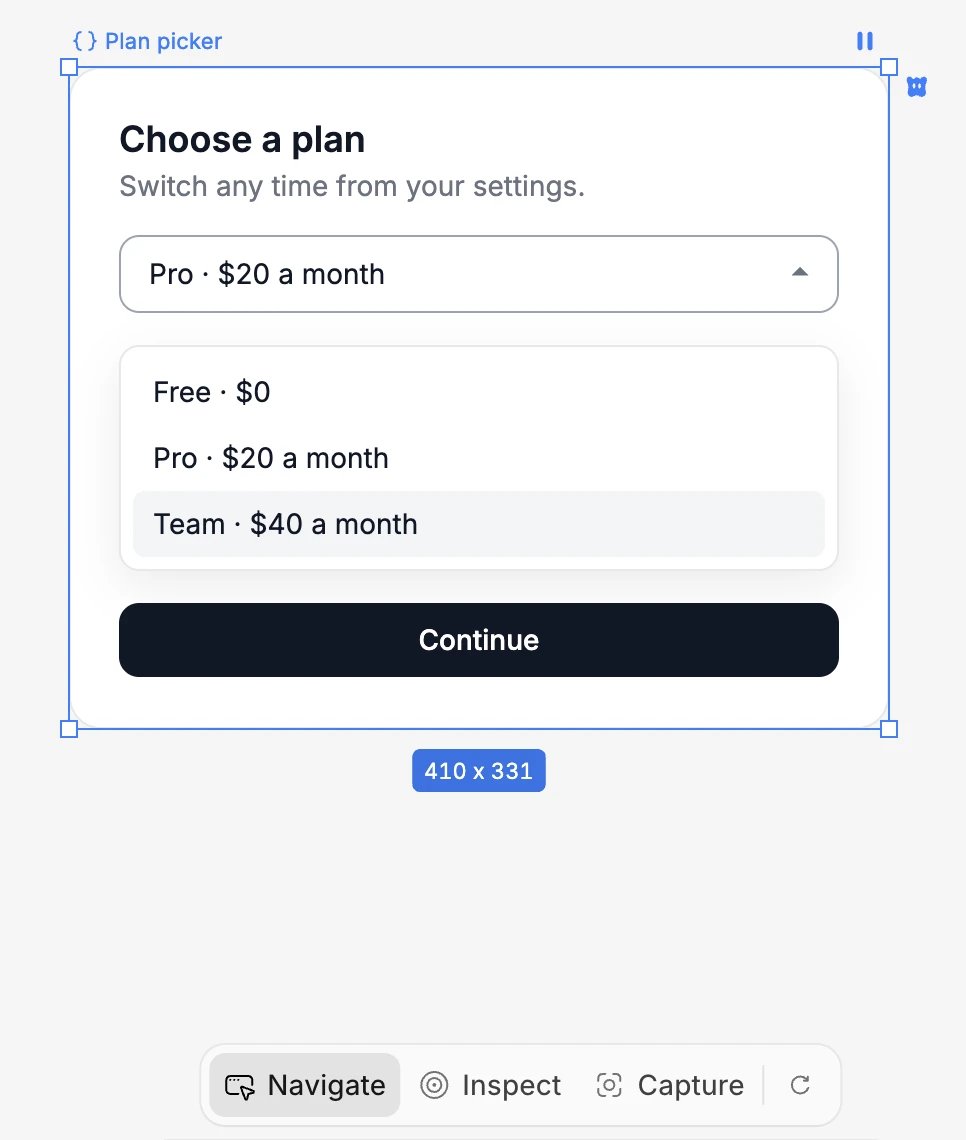
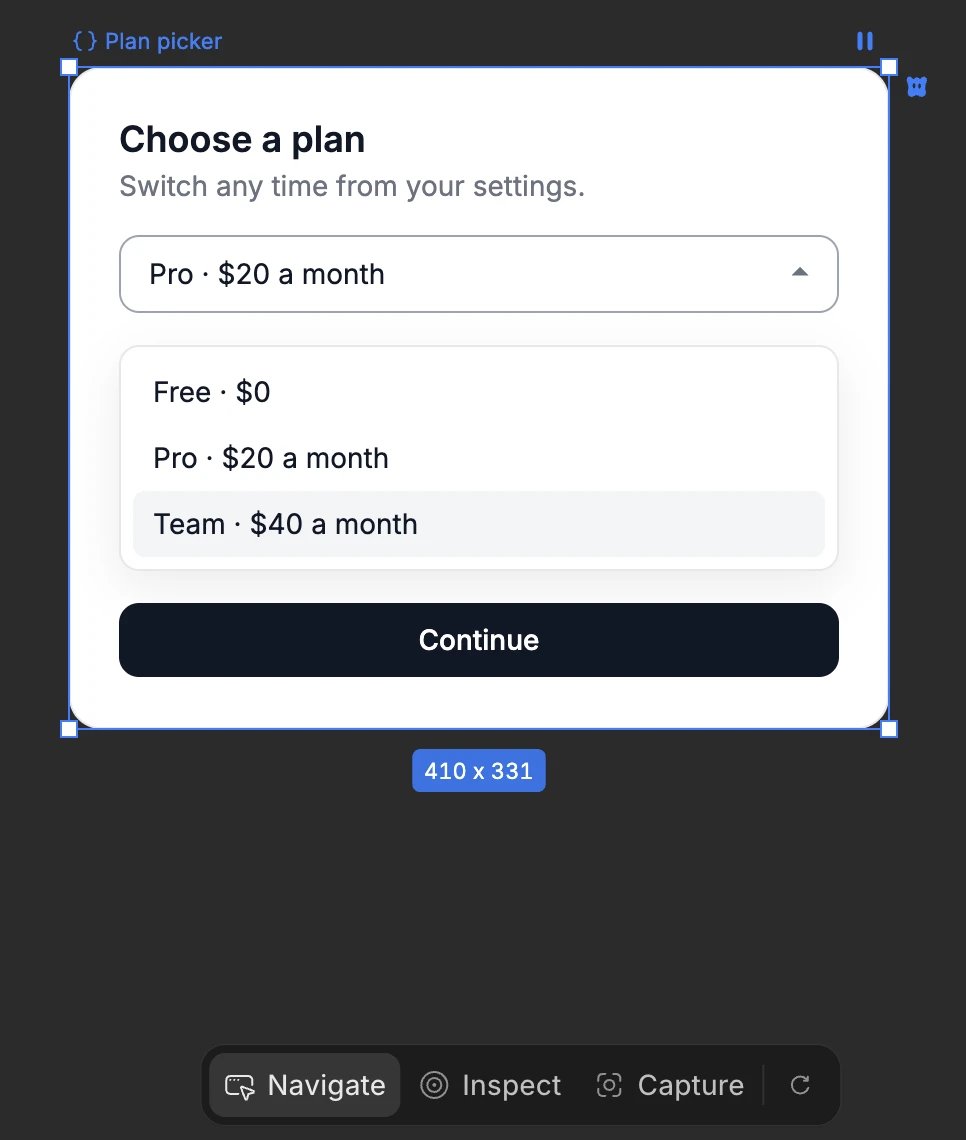
Fix a broken prototype
When a prototype’s code throws, the prototype stops and shows This prototype hit an error, with the error. The rest of the canvas keeps running.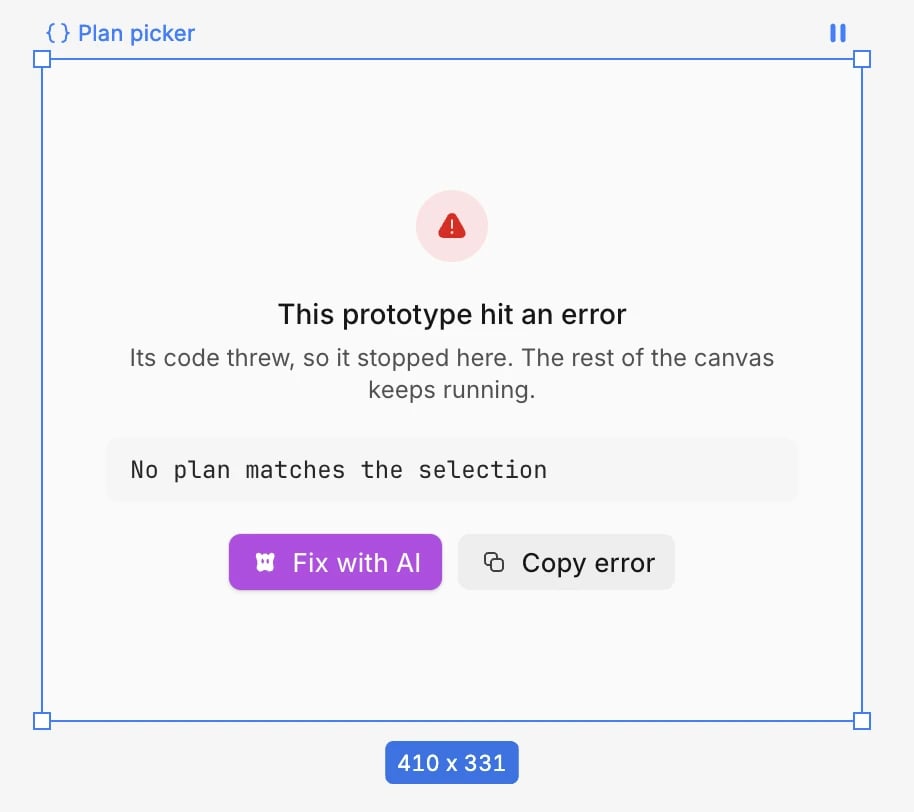
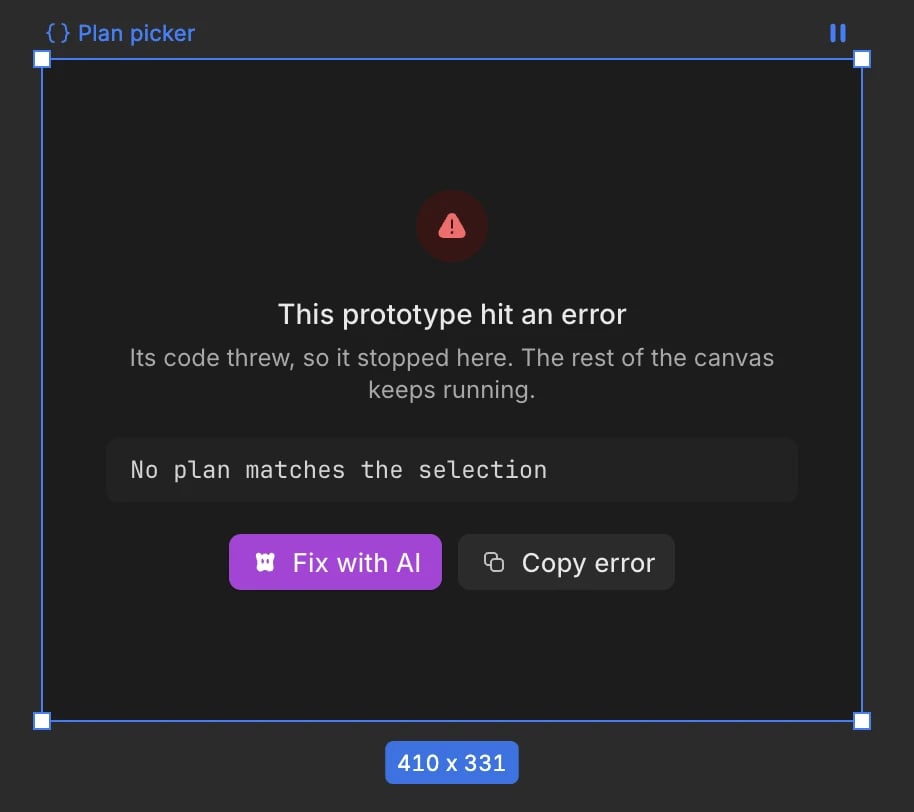
- Fix with AI puts the prototype in your chat and writes a message asking your agent to fix the error. Read it and send it. Your own draft in the chat is kept. Fix with AI needs the desktop app with Claude Code or Codex in Wonder Chat.
- Copy error copies the error, to paste into any agent.
Duplicate a prototype
Select a prototype and press ⌘D, or copy and paste it, in the same file or another one. The copy plays the same code until one of them changes, then each has its own. Changing one never changes the other. A prototype that’s still being built isn’t copied. Duplicating or pasting a prototype doesn’t count toward the weekly prototypes on Free.Change a prototype with an agent
- Select the prototype and press ⌘L to add it to chat, or use Inspect to point at the part that’s off.
- Say what to change, such as “make the dropdown close when I pick an option”.
Copy, export and comment
- Copy as code: right-click a prototype and choose Copy as > Copy as code to copy its own source. It’s the only item in Copy as for a prototype. See Copy and export.
- Export code: in the Export section, Export code saves the prototype’s source as a
.tsxfile, or several prototypes as a zip. See Export as code. - Comments: with the Comment tool, a click in a prototype pins the comment to the element under your pointer. See Comments.
If something goes wrong
- There’s no Create prototype. Select only frames, not layers inside them or a prototype. Creating a prototype also needs the desktop app with Claude Code or Codex signed in, and edit access to the file.
- “Couldn’t send to the chat”. Open a chat, or wait for its last message to send, then try again.
- “Couldn’t start the prototype. Reload Wonder and try again.” Reload Wonder, select the frames and choose Create prototype again.
- The prototype disappeared while it was being built. The chat stopped before the prototype had any code. Create it again.
- There’s no Fix with AI. Fixing with AI needs the desktop app with Claude Code or Codex in Wonder Chat. Use Copy error and paste the error into your agent instead.
- “Your agents have made 10 prototypes this week on the Free plan.” You’ve made this week’s prototypes on Free. Your agent can still change the ones you have. See 10 prototypes a week.
- “Couldn’t copy the prototype’s code”. Try copying it again.
Related
- Design with AI: what to ask your agent on the canvas.
- Add to chat from the canvas: send a prototype or frames to your chat.
- Wonder MCP tools: the tools your agent uses to make and change prototypes.
- Comments: leave feedback on a prototype’s elements.