

What Wonder Chat is
Each chat runs Claude Code or Codex on your own computer, signed in with your own account. Wonder connects it to your canvas through Wonder MCP and to your repository, so the agent sees your designs and your code in one place, with the MCP servers and skills you’ve already set up for it. Chats run on your own Claude Code or Codex plan, so they use no Wonder credits. On the Free plan, the layers your agents create on the canvas count toward 3,000 AI-generated layers a week. See Check your AI-generated layers. To get started, connect Claude Code or Codex.Start a chat
- In a repository: click + (New worktree) on the repository’s row in the sidebar. The chat works in a new worktree, a separate copy of your code, so several chats can work at once without getting in each other’s way.
- Without a repository: click + (New quick chat) next to Quick chats in the sidebar, or Create quick chat when you have none yet. A quick chat is for asking questions or designing on the canvas when there’s no code involved. To add code to it later, choose Turn into a repository from its menu.
- Beside the chat you have open: click Create new chat at the top of the sidebar. It starts a quick chat beside a quick chat, or a chat in a new worktree beside a repository’s chat.
- From the keyboard: in the chat, press ⌘ T (Ctrl T on Windows). It starts a chat in the worktree you have open, or a quick chat if none is. New chat is also in the command palette.
Write and send a message
- Type in the message box. In a repository it reads Describe what you want to do…, and in a quick chat Ask anything or describe a design. No repository attached.
- Press Enter to send. Press Shift Enter for a new line.
Steer, queue or stop the agent
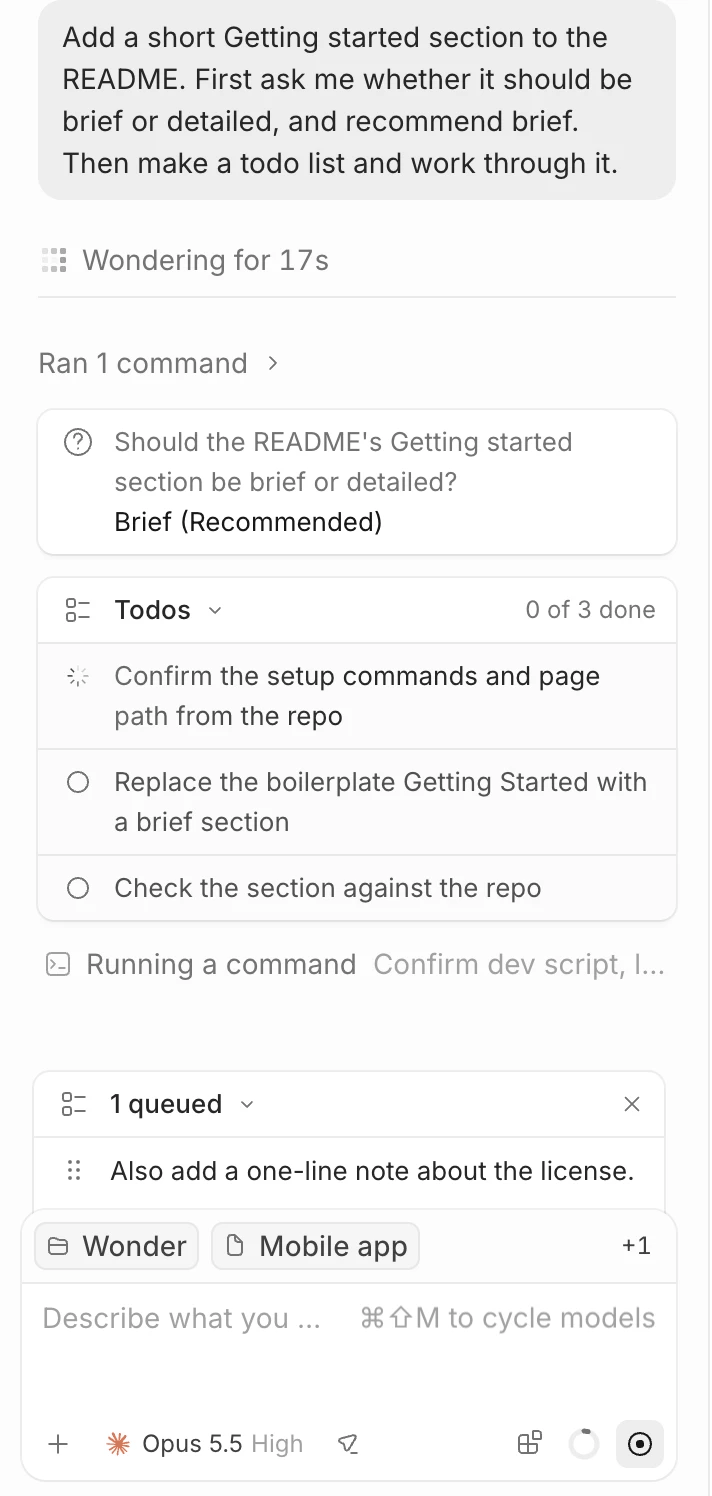
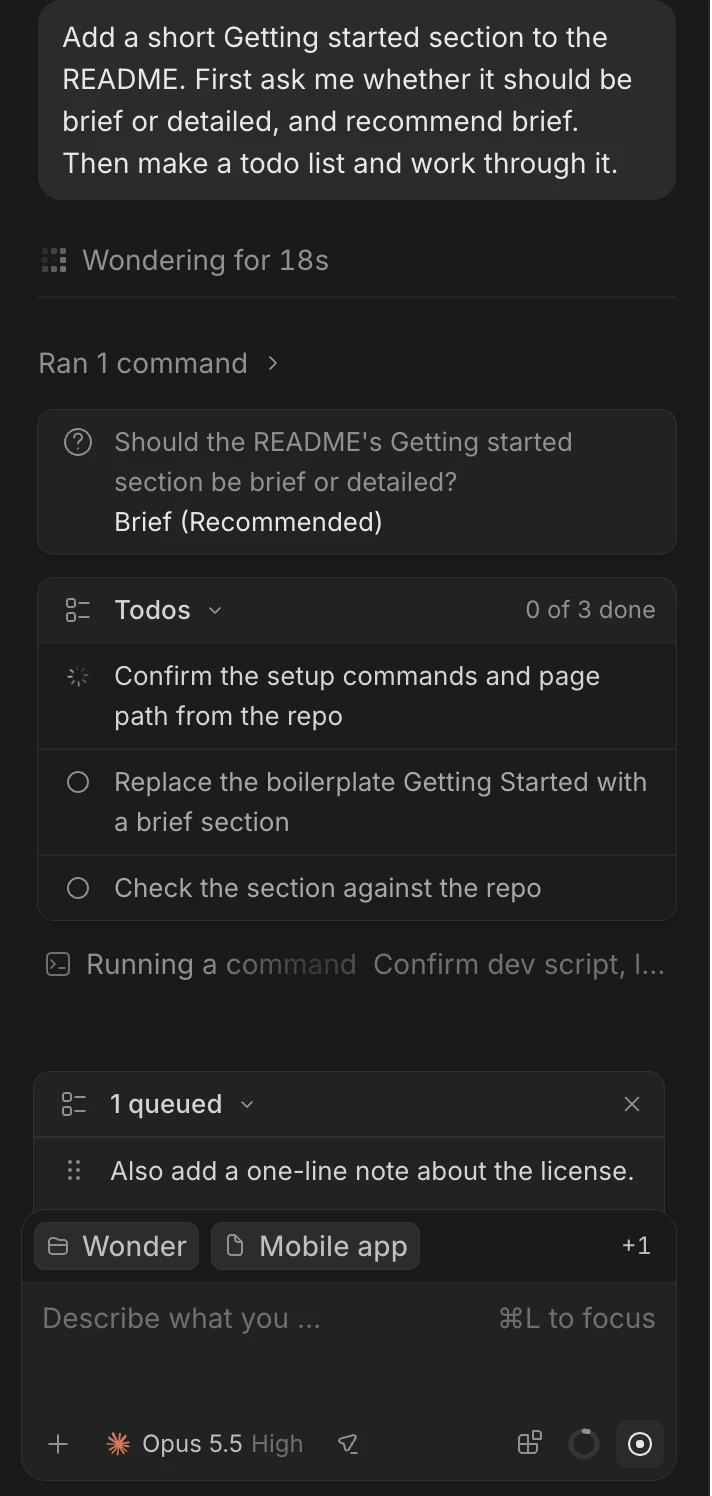
You can keep typing while the agent works. A message you send then is a follow-up, and it goes one of two ways:- Queue waits until the agent is done, then sends. This is the default.
- Steer joins the current work: the agent reads it right away and adjusts what it’s doing.
- Click Steer to send it into the current work now, or Send now once the agent has stopped.
- Click Edit to change it, then Save changes. Press Esc to cancel the edit.
- Drag it to reorder the queue, or click Delete to remove it.
Follow what the agent is doing
While the agent works, the chat shows how long it’s been going, such as Wondering for 1m 20s, and its last line says what the agent is doing, such as Thinking, Editing the canvas, Editing files or Running a command. When it needs you, it reads Waiting for approval or Waiting for your answer. In the chat itself:- The agent’s work between replies is grouped and collapsed, such as Ran 3 commands, edited 2 files. Click it to see the agent’s thinking and each tool it used, then expand a tool to see what it did. To open them unfolded, see Expand agent work by default.
- A Todos card shows the agent’s plan, with each step Not started, In progress or Done.
- When the agent hands work to a subagent, click Open conversation to follow it.
- When the agent designs, a Designs card shows how many are ready. See Watch the agent work.
Answer the agent’s questions
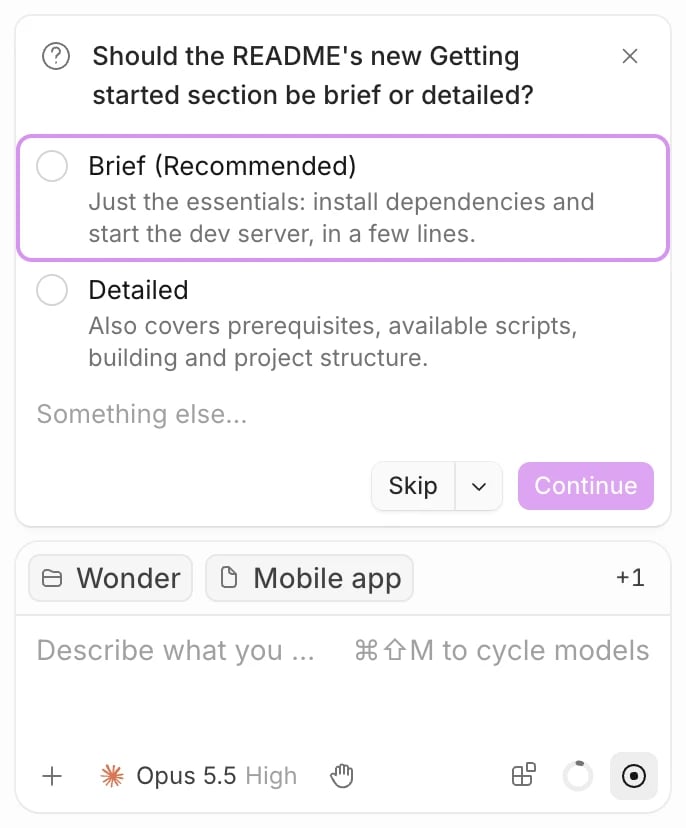
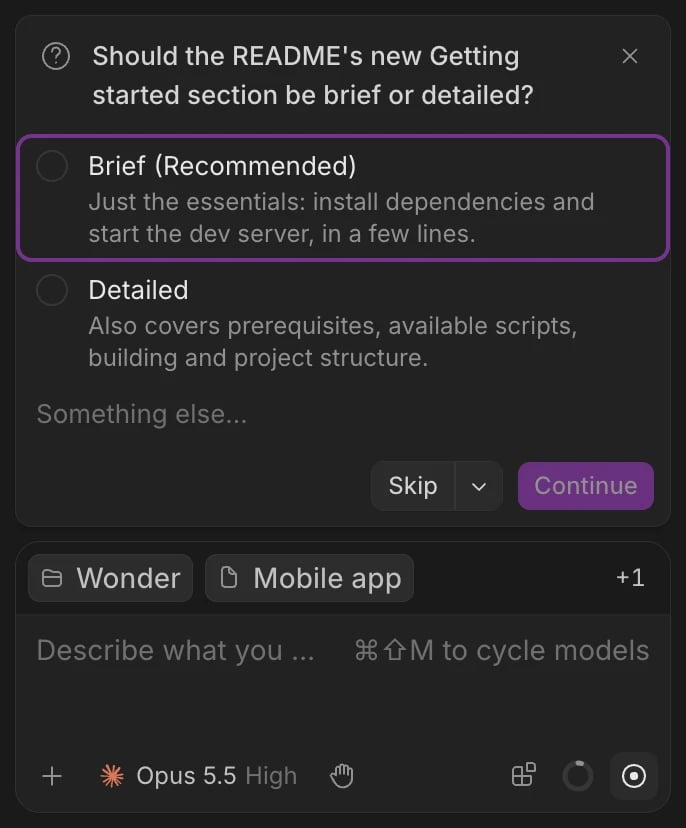
When the agent needs a decision from you, it asks in a card above the message box.- Pick an option, or several when the question allows it. To answer in your own words, type in Something else….
- Click Continue. With several questions, use Previous question and Next question to move between them.
Slash commands
Type / at the start of a message to open the list of commands, and keep typing to filter it. Alongside your agent’s own commands and skills, Wonder adds these:
In a Claude Code chat, the list also has commands that open in a terminal tab beside the chat, such as
/mcp, /permissions and /status.
Get notified when a chat finishes
When a chat finishes, or needs your approval or an answer, while you’re looking at something else, Wonder lets you know:- A desktop notification names the chat and says what happened: Finished responding, Needs your approval, Has a question for you or A turn failed.
- The Wonder icon in the Dock shows how many chats need you. On Windows, the taskbar icon shows a dot.
- In the sidebar, the chat shows a dot until you open it. Choose Mark as read or Mark as unread from a worktree’s menu.
Chats in the browser
Chats run Claude Code or Codex on your computer, so they’re only in the desktop app. In Wonder in the browser, the chats page says Agent chats run in the Wonder desktop app and offers the download. Files you open in the browser have no chat. You can still work on your files from the browser and from other agents over Wonder MCP, and see the changes chats make, since they work on the same files.If something goes wrong
- The model picker says Not connected. No agent is signed in. See Connect Claude Code or Codex.
- The chat says Claude Code isn’t signed in, or Codex isn’t signed in. Click Sign in to Claude or Sign in to Codex in the chat. See Fix a stopped chat.
- Your queued messages don’t send. They’re paused, for example after you stopped the agent or a turn failed. Click Resume.
- Send now isn’t available. The reason shows when you hover over it, such as Answer the agent first.