

Where you connect an agent
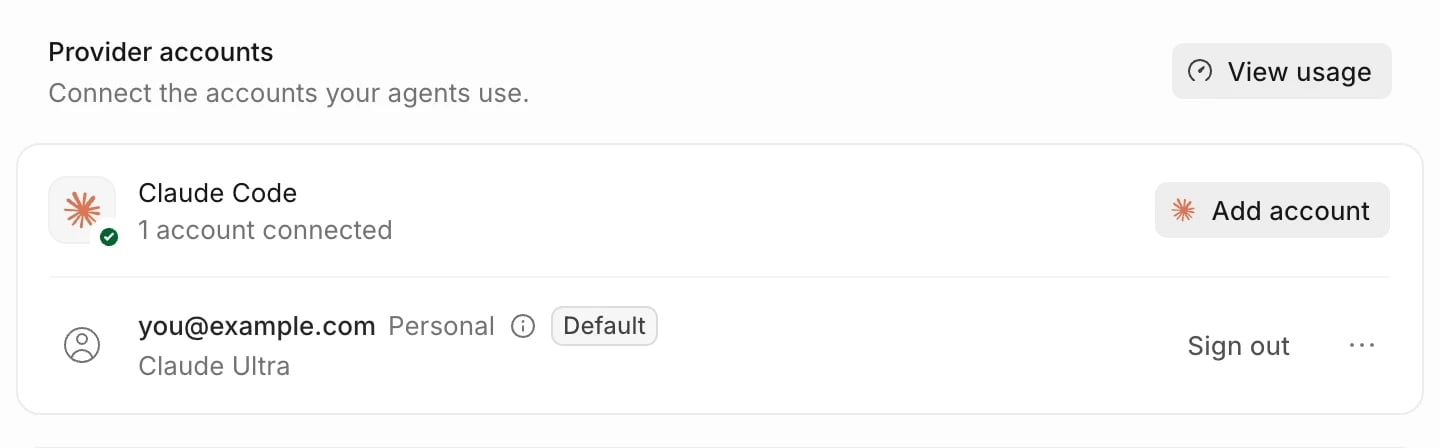
Open Settings > Agents. Under Provider accounts there’s a row for each built-in agent:- Claude Code: sign in with your claude.ai account.
- Codex: sign in with your ChatGPT account.
Sign in
- In Settings > Agents, click Connect Claude or Connect Codex.
- Your browser opens on claude.ai or ChatGPT. Sign in with the account you want to use. If your browser is signed in to another account, switch or sign out there first.
- Come back to Wonder. The row shows 1 account connected and the account with its plan.
Other ways to sign in
Instead of a plan sign-in, Claude Code can use an Anthropic API key, AWS Bedrock or Google Vertex AI, and Codex an OpenAI API key or the model provider in your Codex configuration. Wonder doesn’t ask for keys itself: it uses the ones this computer’s agent is set up with.
Wonder reads these variables from the environment it was started with, not from your shell profile. When both Bedrock and Vertex AI are set, Claude Code uses Bedrock, and either one comes before an API key.
If you have both a key and a saved sign-in, chats keep using the sign-in until you pick the key. Pick which one chats use from the account’s menu: Use ANTHROPIC_API_KEY instead (or Use OPENAI_API_KEY instead), or Use your saved Claude Code sign-in instead (or Codex).
Add another account Pro
To use more than one Claude or ChatGPT account, for example a personal and a work account:- In Settings > Agents, click Add account under Claude Code or Codex.
- Sign in to the other account in your browser.
Sign out or remove an account
From an account’s row:- Sign out signs a claude.ai or ChatGPT account out. For this computer’s login, that also signs you out of the agent in your terminal and other apps that use it. Accounts on an API key or a cloud provider have no Sign out.
- Remove takes the account off the list. For this computer’s login, it shows once another account is the default:
- On a claude.ai or ChatGPT sign-in, removing it also signs you out of the agent in your terminal and other apps that use it.
- On an API key or a cloud provider, Wonder stops listing it and your terminal stays signed in.
Wonder installs and updates the agents
You don’t need Claude Code or Codex installed. Wonder sets up its own copy of each agent and checks it before it runs. While it does, the row shows Installing…, with how far along it is once the download starts, or after a Wonder update, Updating…. The connection menu (…) shows the agent’s version followed by Ready. Your sign-in is shared with the agents you’ve installed yourself, but chats always run on Wonder’s copy, so a newer or older version in your terminal doesn’t change them. To get a newer agent, update Wonder. See Update the desktop app. Wonder’s built-in agents are Claude Code and Codex. To work from another agent, connect it over Wonder MCP.Tools and agent settings
The rest of Settings > Agents sets how your agents work:- Tools lists the MCP servers from your agents’ own settings on this computer. See Tools and MCP servers.
- Access, Chat and Response preferences hold the shared settings and the extras for one agent, such as Claude connectors or Codex personality. See Agent and chat preferences.
- The mode new chats start in and what’s allowed without asking are in Permission modes and approvals.
If something goes wrong
- The row says Not installed on this computer, or shows why an install failed. Click Install or Retry install. See Claude Code isn’t installed on this computer.
- “Sign-in did not finish.” Start the sign-in again from the row and finish it in your browser within five minutes.
- An account shows Account changed. Its login changed outside Wonder, for example in your terminal, and the row says Now signed in as the new account and which one it was. Click Sign in as the old account to switch back, or Keep the new one.
- Your browser signed in as an account that’s already added. Switch accounts on claude.ai or ChatGPT, then try again.
- Claude Code can’t sign in from Wonder. Open a terminal, run
claude, type/loginand follow the sign-in. Then choose Check again from the connection menu. - A chat says Claude Code isn’t signed in, or Codex isn’t signed in. Click Sign in to Claude or Sign in to Codex in the chat, or sign in again in Settings > Agents. See Fix a stopped chat.